GNOME Remote Desktop
gitlab.gnome.org · checked 15 Oct 2026
Open-source GNOME server for remote assistance, headless desktops, and RDP remote login.
How it plugs in
Signal on Remote desktop software7.3#8 of 135
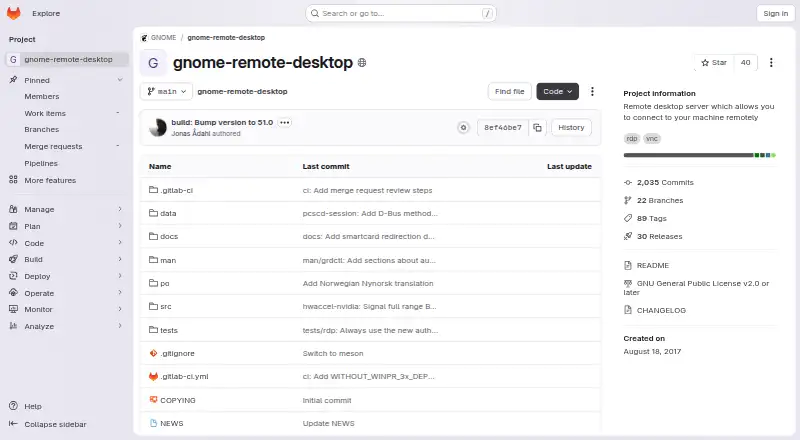
GNOME Remote Desktop is a free Linux server for remote assistance, single-user headless sessions, and headless remote login. RDP and VNC backends are available, but each operating mode has different backend support. Setup includes credentials and security choices, and the project warns against exposing services directly to the public internet.
Review
In a line
GNOME’s remote desktop server lets another device reach Linux desktops. It supports active-session assistance, headless desktop access, and headless remote login.
What it does
Remote assistance shares a session that is already running. Locking the local screen ends that remote connection.
Single-user headless mode connects to a separately configured GNOME graphical session. Through GNOME Display Manager, headless multi-user remote login is offered only with RDP.
RDP and VNC provide the remote connections, but their availability depends on the operating mode. GNOME 47 added sessions that continue after a disconnect.
How it connects
The server runs on Linux and is self-hosted. Screen pixels flow through PipeWire, libei carries input events, and Mutter’s remote-desktop API manages sessions. RDP uses FreeRDP, while VNC uses LibVNCServer.
GNOME lists Remmina, Connections, and xfreerdp for Linux, mstsc for Windows, and Thincast for Linux, Windows, or macOS as known working clients.
A D-Bus interface reports daemon and RDP/VNC server status, but the project does not promise compatibility between versions. The GPL v2-or-later code is open source.
Good fit
It suits people who need a Linux-hosted remote desktop server for assistance, a single-user headless machine, or multi-user remote login.
The grdctl command-line tool can enable backends, set credentials and certificates, change view-only mode, and show status. Documentation covers configuration, Kerberos authentication, and smart-card redirection.
GNOME 50 brings Vulkan and VA-API hardware acceleration, HiDPI scaling for remote clients, camera redirection, Kerberos authentication, and support for sessions started with gnome-headless-session.
Watch for
RDP setup requires a TLS key, certificate, and configured credentials. VNC can use a password or a prompt and can allow control instead of view-only access.
Backend support varies by operating mode. H.264 can reduce bandwidth only when the graphics pipeline, client support, and an NVIDIA NVENC encoder are all available.
The README advises against opening the firewall to the public internet. Ubuntu documents port 3389 by default, or 3390 for desktop sharing when remote login is enabled at the same time.
Ubuntu requires Desktop 24.04 LTS or later with GNOME on the server. Its desktop-sharing resolution follows the server session and may look too small, too large, or blurry on the client.
Pricing
GNOME Remote Desktop is free, with no free trial because there is no paid plan. It is released under GNU GPL version 2 or any later version.
RDP and VNC backends are included, although some operating modes do not support both.
Verdict
Choose it when you want an open-source, Linux-based remote desktop server that fits GNOME sessions and can support both assistance and headless access.
It is a practical match for administrators comfortable configuring certificates, credentials, firewall rules, and GNOME sessions. The command-line controls and status interface help with self-hosted setup.
Look elsewhere if you need a hosted service, broad operating-system support on the server, or one backend that covers every mode.
Our take
GNOME Remote Desktop makes sense for Linux and GNOME setups where you control the server and want free, open-source remote access. Its range of modes is useful, but each mode has specific RDP or VNC limits, and secure setup is your responsibility. Check your GNOME and Ubuntu versions, certificate needs, client choice, and firewall plan before installing. It is a poor fit for buyers seeking a hosted product, simple cross-platform server support, or a managed service with no local configuration.
- Free software under GNU GPL v2 or later
- Supports assistance, headless sessions, and remote login
- Includes RDP and VNC backends
- Known clients run on Linux, Windows, and macOS
- Command-line administration and status reporting
- Backend availability differs by operating mode
- RDP setup needs a TLS key, certificate, and credentials
- The README advises against exposing the firewall to the public internet
- Ubuntu sharing resolution can look too small, large, or blurry
- D-Bus version compatibility is not promised
- Pick it ifLinux administrators running GNOME desktops; Remote assistance and headless GNOME access; Self-hosted setups needing RDP or VNC
- Skip it ifYou need a hosted remote-access service; You need every mode to work with both RDP and VNC; You cannot manage certificates, credentials, and firewall rules
Pricing
Free open-source software with no trial or paid tier. RDP and VNC are included, but backend support depends on the operating mode.
- GNOME Remote DesktopGNU GPL v2 or later · RDP and VNC backends · not all operating modes work with both backendsFree
As github.com lists them, checked 7 Oct 2026.
Questions
Does GNOME Remote Desktop cost anything?
Yes. It is free and licensed under GNU GPL version 2 or any later version. There is no separate free trial.
Which systems can run the server?
The server is supported on Linux and is self-hosted. Ubuntu’s current instructions require Ubuntu Desktop 24.04 LTS or later with GNOME.
Which connection protocols are available?
RDP and VNC are both available, although backend support varies by operating mode.
Can I connect from Windows or macOS?
Mstsc is a known working Windows option, while Thincast is listed for Linux, Windows, and macOS.
What does RDP security require?
RDP configuration needs a TLS key and certificate plus configured credentials. GNOME Settings can show an encryption fingerprint for comparison.
Can remote login continue after disconnecting?
Persistent remote-login sessions were added in GNOME 47, so sessions can continue after a disconnection.
Should I expose it directly to the internet?
The README warns against opening the firewall to the public internet and documents firewalld rules for its default services.
Near it
All alternatives →- GM
 Getscreen.me#7 on this board
- M
 MeshCentral#9 on this board
- H
 HopToDesk#6 on this board
- JDJump Desktop#10 on this board
- MR
 ManageEngine Remote Access Plus#5 on this board
- AB
 Admin By Request Secure Remote Access#11 on this board
- ZA
 Zoho Assist#4 on this board
- IRIperius Remote#12 on this board
- S
 Splashtop#3 on this board
- D
 DeskIn#13 on this board