
Outdated Drivers Are Slowing You Down
One free scan finds every outdated or missing driver and matches the right update for your exact hardware.Free scan · exact hardware matchPC Slower Than It Used to Be?
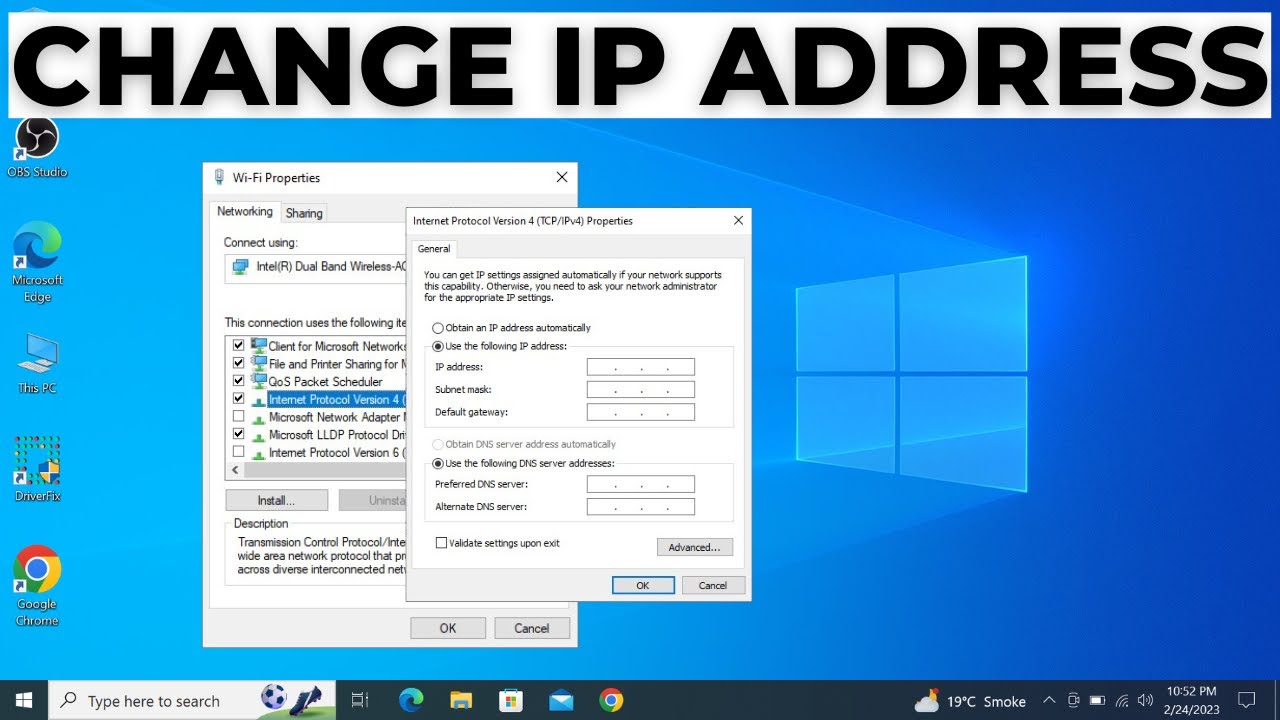
A free scan shows the junk files, broken settings and background clutter dragging Windows down - then fixes them in one click.Free scan · Windows 10 & 11Changing your IP address in Windows can be useful for various reasons, such as troubleshooting network issues, enhancing privacy, or bypassing regional restrictions. This guide provides clear, step-by-step instructions on how to change your IP address in Windows 10 and 11, covering both local and public IP addresses.
Understanding IP Addresses
Before diving into the methods, it’s essential to understand the two types of IP addresses:
- Local IP Address: Assigned to your device within your local network (e.g., 192.168.1.2). Changing this can help resolve network conflicts or issues with specific devices.
- Public IP Address: Assigned to your router by your Internet Service Provider (ISP). Changing this can help with privacy or access to region-restricted content.
Method 1: Change Local IP Address via Settings (Windows 10 and 11)
- Open Settings:
- Press Windows + I to open the Settings menu.
- Navigate to Network Settings:
- Go to Network & Internet.
- Select Ethernet or Wi-Fi, depending on your connection.
- Access Adapter Properties:
- Click on Properties under your active network.
- Edit IP Settings:
- Scroll down to IP settings.
- Click on Edit under IP assignment.
- Configure Static IP:
- Choose Manual.
- Toggle IPv4 to On.
- Enter your desired IP address (e.g., 192.168.1.100), Subnet prefix length (usually 24), and Gateway (typically 192.168.1.1).
- Click Save.
Note: Ensure the IP address you choose is within your local network’s range and not already in use by another device.
Shopping ad

- Automatic Router Rebooter - Stop manually rebooting your router and let Keep Connect automate the process. Keep Connect will constantly monitor your internet health and automatically reboots your router or modem when disconnected. You can also choose to receive notifications through email or SMS if you enter your phone number.
- Ensures a Reliable Internet Connection 24/7/365 - Keep Connect will make sure your connected devices are always online and available. You can also Schedule Periodic Resets to keep your connection fresh and fast.
- Compact Size - Keep Connect’s smaller size makes it a perfect fit for your receptacle space, making it an ideal choice for apartments, small homes, or any space where you need reliable internet connectivity without taking up too much space. Perfect use for your Smart Home, Office, Business, or Remote Locations.
- Premium Cloud Services App Available (iOS App Store and Google Play Store) - Our Premium Keep Connect Cloud Services platform allows using our Online/Mobile App to monitor many locations in one place as well. Cloud Services allows remote management of devices at all locations as well as heartbeat monitoring of your Keep Connects to notify you in the event of an ISP internet outage at one of your sites.
- Industry-leading Customer Service - Our team is dedicated to providing you with top-notch customer service and technical support. Whether you have questions, need assistance, or require troubleshooting, our support team is available to help you every step of the way.
Method 2: Change Local IP Address via Command Prompt
- Open Command Prompt as Administrator:
- Press Windows + X and select Command Prompt (Admin).
- Release Current IP Address:
- Type ipconfig /release and press Enter.
- Renew IP Address:
- Type ipconfig /renew and press Enter.
- Verify New IP Address:
- Type ipconfig to see your new IP address.
This method is useful for obtaining a new IP address from your router’s DHCP server.
Method 3: Change Public IP Address by Restarting Your Router
Shopping ad

- 12H/24H/72H ADJUSTABLE TIMING: Customize your network maintenance. This router rebooter features 12H, 24H, and 72H selectable cycles. It automatically powers off and restarts your device based on your chosen interval, effectively clearing internal caches and maximizing bandwidth efficiency without interrupting your schedule.
- DURABLE METAL HOUSING: Engineered for safety and longevity. Unlike standard plastic alternatives, this automatic router reset device boasts a premium metal component housing. It ensures enhanced heat dissipation, effectively preventing both the rebooter and your connected equipment from overheating during continuous 24/7 operation.
- PLUG & PLAY WITH INDICATOR: Experience automated power cycling without technical expertise. Simply plug this reset unit into your router or modem's power interface. The built-in indicator light lets you easily observe the operational status, ensuring your network runs smoothly day and night with zero manual maintenance required.
- IDEAL FOR GAMING & REMOTE WORK: Never suffer from sudden network drops during critical online activities. This restart module is an essential accessory for remote workers, gamers, and households with multiple connecting devices. It eliminates network congestion and ensures consistent, high-speed internet when you need it most.
- 12CM COMPACT CABLE DESIGN: Designed for a neat, space-saving installation. The 12cm (4.72in) short cord seamlessly integrates into your existing setup without adding unnecessary wire clutter to your desk or network cabinet. Package includes 1x Router Rebooter Timer.
- Unplug Your Router:
- Disconnect the power cable from your router.
- Wait for 5-10 Minutes:
- This allows your ISP to assign a new public IP address.
- Reconnect the Router:
- Plug the router back in and power it on.
- Check New IP Address:
- Visit a website like WhatIsMyIP.com to see your new public IP address.
Note: This method works if your ISP assigns dynamic IP addresses. If you have a static IP, this won’t change your public IP address.
Quick wins for a faster PC:
Repair Windows errors before they cause bigger problemsFix Now →Scan for outdated or missing drivers - takes under a minuteDriver Scan →Clear out junk files and repair common Windows errorsFree Scan →Method 4: Use a VPN to Change Your Public IP Address
A Virtual Private Network (VPN) routes your internet traffic through a server in a different location, effectively changing your public IP address.
Shopping ad
- Monitors Internet Connectivity and Cycles Power Outlet when Broadband (DSL, cable, satellite, FiOS, etc) Connection is Lost
- Automatically Restart Remote Equipment such as Modems, Routers, PCs or Security Cameras when they Crash, Freeze or Lock-Up
- Connects to your LAN via 2.4G WiFi or 10/100 Ethernet
- Schedule Multiple Automatic Power Cycles (e.g. ON at 6 AM, OFF at 9 PM)
- Free Monitor & Control App for iPhone / iPad / Android Phones & Tablets or use Cloud & Web Interfaces
- Choose a VPN Provider:
- Select a reputable VPN service (e.g., NordVPN, ExpressVPN).
- Install and Launch the VPN:
- Download and install the VPN application.
- Open the application and log in.
- Connect to a Server:
- Choose a server in the desired location and connect.
- Verify New IP Address:
- Visit WhatIsMyIP.com to confirm your new public IP address.
Note: A VPN also encrypts your internet traffic, enhancing privacy and security.
Method 5: Change Public IP Address via Router Settings
The Tool Desk
Outbyte Driver Updater FREEFix the driver behind crashes, sound loss and screen glitchesFind Drivers →Outbyte PC Repair FREERepair Windows errors before they cause bigger problemsFix Now →- Access Router Settings:
- Open a web browser and enter your router’s IP address (commonly 192.168.1.1 or 192.168.0.1).
- Log in with your router’s admin credentials.
- Navigate to WAN/Internet Settings:
- Look for sections labeled WAN, Internet, or Network settings.
- Change Connection Type:
- If possible, change the connection type from DHCP to Static IP and save the settings.
- Reboot the Router:
- After making changes, reboot your router to apply the new settings.
- Check New IP Address:
- Visit WhatIsMyIP.com to see your new public IP address.
Note: Not all routers allow changing the public IP address through settings. If this method doesn’t work, consider using a VPN or contacting your ISP.
Shopping ad

- KEY FETURES & FUNCTIONALITY: Automatically Checks Internet Connectivity and Power Reset Device when Connection is Lost. Plugs Directly Into Your Existing Device's Power Input (Supports USB Type-C, Micro USB). Set Schedule to Power On, Off, or Reset Your Device. Integrated Power Monitoring. OLED Display for Information & Controls.
- WIRELESS: Connects to your Local Network via 2.4GHz Wi-Fi.
- NETWORK SELF-HEALING: Automatically Reboot Unresponsive Network Equipment like Routers, Modems, Web Cameras, and IoT Devices.
- FREE APP & CLOUD: Control your device via the Free ezDevice APP (iOS/Android) or Cloud4UIS.com. For large deployments, upgrade to Business Platform for advanced device and user management.
- SPECIFICATIONS: For DC Input & Output USB Type-C (compatible with Micro USB), Wi-Fi: 2.4GHz (802.11b/g), Power Input: QC3.0(5V/3A, 9V/2A, 12V/1.5A, 20V/1A), PD (5V/3A).
Method 6: Use a Proxy Server to Change Your Public IP Address
A proxy server acts as an intermediary between your device and the internet, masking your real IP address.
- Choose a Proxy Service:
- Select a reputable proxy service provider.
- Configure Proxy Settings:
- Go to Settings > Network & Internet > Proxy.
- Enter the proxy server’s address and port number provided by your service.
- Save Settings:
- Click Save to apply the new proxy settings.
- Verify New IP Address:
- Visit WhatIsMyIP.com to confirm your new public IP address.
Note: Using a proxy can provide anonymity but may not encrypt your internet traffic like a VPN.
What’s actually slowing this PC down?
Pick the symptom - the matching free tool is one click away.
Shopping ad
- Key Features**: Our automatic router rebooter periodically restarts your router. Regular reboots help maintain optimal performance for WiFi extenders, Gigabit Ethernet switches, network cameras, and modems.
- Multiple Timing Options**: Supports flexible scheduling at 24-hour, 48-hour, and 72-hour intervals. This feature allows you to customize reboot schedules based on your network usage patterns, precisely meeting personalized needs.
- User-Friendly Design**: Featuring plug-and-play simplicity, the automatic router restart device operates effortlessly. Press the button to select your desired interval—indicator lights display different colors for each duration (red for 24 hours, green for 48 hours, blue for 72 hours).
- Usage Instructions**: Button: Single press: Restarts timer. Indicator flashes slowly 5 times. Double press: Switches modes. No action within 3 seconds saves current mode.
- Safe Operation**: This product functions solely as a timer switch and does not alter any router settings. Use with confidence—it won't interfere with existing configurations.
Method 7: Contact Your ISP to Request a New IP Address
If other methods don’t work, you can contact your Internet Service Provider (ISP) and request a new public IP address.
- Find Your ISP’s Contact Information:
- Locate the customer support number or email address for your ISP.
- Request a New IP Address:
- Call or email your ISP and request a new public IP address.
- Follow ISP’s Instructions:
- Your ISP may require you to perform specific steps or may change your IP address remotely.
Note: Some ISPs may charge a fee for this service or may not offer it at all.
Conclusion
Changing your IP address in Windows can be accomplished through various methods, depending on whether you’re aiming to change your local or public IP address. Always ensure that any changes you make are within your network’s configuration and that you have the necessary permissions to modify network settings.
If you need further assistance or have questions about changing your IP address, feel free to ask.
Quick Recap
Product prices and availability are accurate as of the date/time indicated and are subject to change. Any price and availability information displayed on Amazon at the time of purchase will apply.
Independent reader supportYour contribution helps us test, update, and keep practical guides available for everyone.
