Recommended Free Tools
Inferse is reader-supported. When you buy through links on our site, we may earn an affiliate commission. As an Amazon Associate I earn from qualifying purchases. Learn more
Securing your laptop is paramount in today’s digital age. While passwords and PINs provide a basic level of security, using a fingerprint lock offers a highly convenient and robust method of authentication. With a quick touch, you can sign in to your Windows 10 or Windows 11 laptop, often without needing to type a single character. This feature is part of Windows Hello, Microsoft’s biometric authentication system.
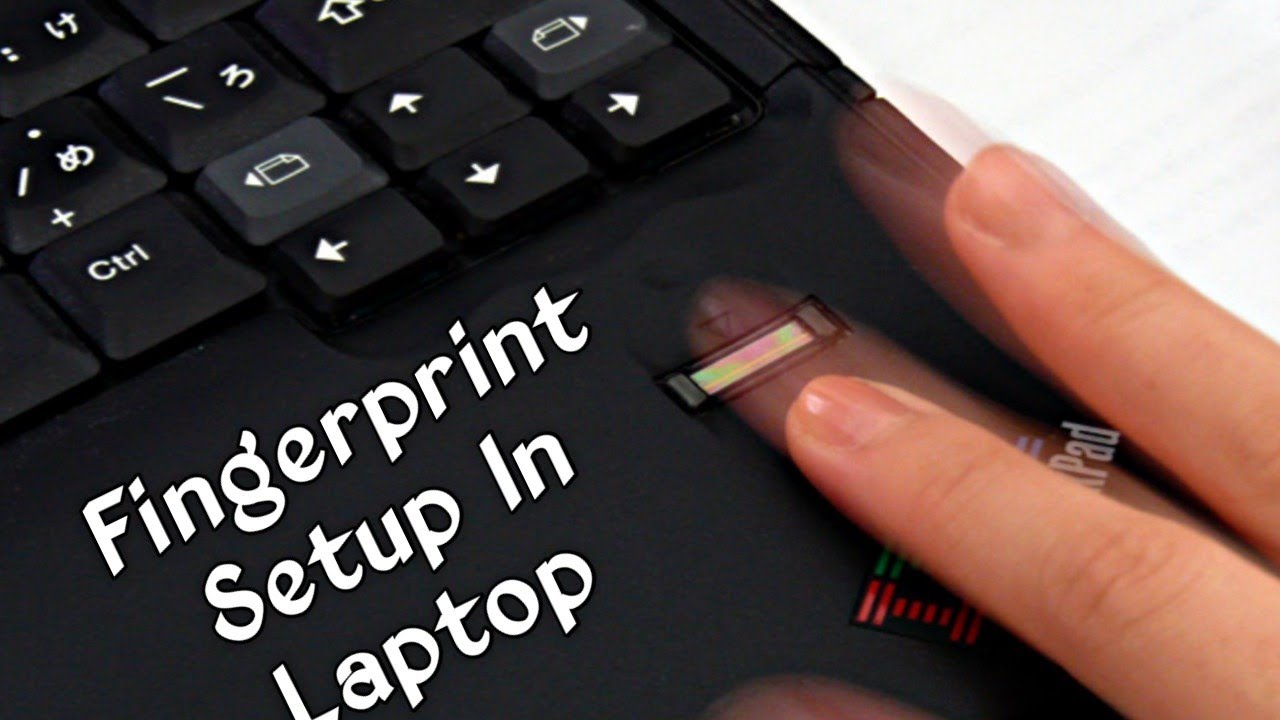
Most modern laptops come equipped with a built-in fingerprint reader, often located on the palm rest, integrated into the power button, or even on the trackpad. Setting it up is a straightforward process that significantly enhances both your laptop’s security and your daily convenience.
This guide will walk you through the steps to enable a fingerprint lock on your Windows laptop.
Before You Begin: Prerequisites
To set up a fingerprint lock on your laptop, ensure the following:
Shopping ad

- Designed for Windows 10: Supports Windows Hello Authentication
- Fast Fingerprint Authentication
- Documents/Folder Encryption
- 360° Fingerprint Recognition | Multi-Fingerprint Registration
- [24/7 Customer Support] Please send a message directly to our store to assist you if you are encountering any difficulty with using this item. Our team is always here happy to assist you. Kindly see the product description below for the troubleshooting instruction with installing the driver for this device.
- Your Laptop Has a Fingerprint Reader: Not all laptops come with one. Check your laptop’s specifications or visually inspect your device for a small square, oval, or circular sensor.
- Windows Hello is Available: Windows Hello is a feature of Windows 10 and Windows 11. Ensure your operating system is up-to-date.
- You Have a PIN Set Up: For security reasons, Windows requires you to set up a PIN (Personal Identification Number) as a backup sign-in option before you can use biometric authentication like a fingerprint. This PIN is crucial if your fingerprint reader malfunctions or after certain system events like restarts or major updates.
- To set up a PIN:
- Go to Settings (Windows Key + I).
- Click Accounts.
- In the left-hand menu, select Sign-in options.
- Under “Ways to sign in,” find “PIN (Windows Hello)”.
- Click “Set up” or “Add” and follow the prompts to create your PIN. You’ll need to enter your account password first.
- To set up a PIN:
Step-by-Step: Setting Up Your Fingerprint Lock
Once you have a PIN established, you can proceed to register your fingerprints.
- Open Windows Settings:
- Click the Start button (Windows icon) or press Windows Key + I to open Settings.
- Navigate to Sign-in options:
- Click Accounts.
- In the left-hand menu, select Sign-in options.
- Find Fingerprint Recognition:
- Under “Ways to sign in,” you should see “Fingerprint recognition (Windows Hello)”.
- Click on it.
- Start Setup:
- Click the “Set up” button.
- You’ll be prompted to enter your PIN as a security measure to verify your identity. Enter your PIN.
- Scan Your Fingerprint:
- A Windows Hello setup window will appear, guiding you through the scanning process.
- Place your chosen finger firmly on the fingerprint reader.
- The system will instruct you to lift and reposition your finger multiple times, rotating it slightly to capture different angles and edges of your fingerprint. This comprehensive scan helps ensure accurate and reliable recognition from various angles you might use when unlocking.
- Continue this process until the progress indicator reaches 100%.
- Confirmation:
- Once the scan is complete, you’ll see a “All set!” or “Fingerprint added” message.
- Click “Close” or “Add another” if you wish to register more fingerprints.
You have now successfully set up a fingerprint lock on your laptop!
Adding Multiple Fingerprints for Convenience
It’s highly recommended to register multiple fingerprints for convenience and improved reliability. You can enroll fingers from both hands, or even different parts of the same finger (though focusing on primary contact areas is best). Most laptops allow you to add several fingerprints.
- Go back to Settings > Accounts > Sign-in options.
- Click on “Fingerprint recognition (Windows Hello).”
- Enter your PIN again.
- Click “Add another” (or “+ Add a finger”).
- Repeat the scanning process (Step 5 above) with a different finger.
- You can also remove existing fingerprints from this menu by selecting them and clicking “Remove.”
Managing Fingerprint Settings and Troubleshooting
Once your fingerprints are registered, you can manage them and troubleshoot any issues.
Shopping ad

- Match-in-Sensor Advanced Fingerprint Technology: Combines excellent biometric performance and 360° readability with anti-spoofing technology. Exceeds industry standards for false rejection rate (FRR 2%) and false acceptance rate (FAR 0.001%). Fingerprint data is isolated and secured in the sensor, so only an encrypted match is transferred.
- Designed for Windows Hello and Windows Hello for Business (Windows 10 and Windows 11): Login on your Windows using Microsoft's built-in login feature with just your fingerprint, no need to remember usernames and passwords; can be used with up to 10 different fingerprints. NOT compatible with MacOS and ChromeOS.
- Designed to Support Passkey Access with Tap and Go CTAP2 protocol: Supports users and businesses in their journey to a passwordless experience. Passkeys are supported by >90% of devices, with a wide range supported across different operating systems and platforms.
- Compatible with Popular Password Managers: Supports popular tools, like Dashlane, LastPass (Premium), Keeper (Premium) and Roboform, through Tap and Go CTAP2 protocol to authenticate and automatically fill in usernames and passwords for websites.
- Great for Enterprise Deployments: Enables the latest web standards approved by the World Wide Web Consortium (W3C). Authenticates without storing passwords on servers, and secures the fingerprint data it collects, allowing it to support a company’s cybersecurity measures consistent with (but not limited to) such privacy laws as GDPR, BIPA, and CCPA.
- Sign-in Options: This is where you control whether fingerprint authentication is enabled for sign-in. Ensure it’s active.
- Verify Fingerprint Reader Drivers: If your fingerprint reader isn’t recognized or isn’t working reliably:
- Open Device Manager (Right-click Start button > Device Manager).
- Expand “Biometric devices” or “Human Interface Devices”.
- Look for your fingerprint reader.
- Right-click it and select “Update driver”. Choose “Search automatically for drivers.”
- If that doesn’t work, right-click and select “Uninstall device”, then restart your laptop. Windows will often reinstall the drivers automatically.
- Visit your laptop manufacturer’s support website and download the latest fingerprint reader drivers for your specific model.
- Clean the Fingerprint Reader: Ensure the fingerprint reader itself is clean and free of dirt, oil, or moisture. Use a soft, lint-free cloth to gently wipe it.
- Restart Your Laptop: A simple restart can often resolve temporary glitches.
- Reset PIN and Fingerprint: If problems persist, try removing all registered fingerprints, then deleting and recreating your PIN, and finally re-registering your fingerprints.
By utilizing the fingerprint lock feature through Windows Hello, you’re adding a layer of sophisticated biometric authentication to your laptop, making sign-ins faster and your device more secure.
Frequently Asked Questions (FAQ)
Q1: Why do I need to set up a PIN before I can use a fingerprint lock on my laptop?
Windows requires a PIN as a fallback security method because biometric authentication (like fingerprints or facial recognition) might not always work. For example, if your finger is wet or dirty, the fingerprint reader might not recognize it. Also, after a system restart or certain security events, Windows will always prompt for your PIN (or password) before allowing biometric login. This ensures you always have a reliable way to access your laptop.
Quick wins for a faster PC:
Scan for outdated or missing drivers - takes under a minuteDriver Scan →Clear out junk files and repair common Windows errorsFree Scan →Q2: Is a fingerprint lock more secure than a password?
Shopping ad

- Certified to Microsoft’s highest fingerprint security standards (ESS & SDCP) for robust, hardware-isolated authentication. Supports next-gen Windows features, including Copilot Recall and Windows Hello with ESS support.
- Windows Hello ready for fast, password free fingerprint login to Windows and Microsoft 365 accounts
- On device fingerprint storage keeps biometric data securely within the key. Supports privacy regulations (GDPR, BIPA, CCPA) through on device biometric processing; TAA compliant.
- Reliable wired USB fingerprint authentication with USB C and USB A compatibility for desktop PCs.
- Consistent, all condition 360° fingerprint recognition.
A fingerprint lock is generally considered more convenient than a password and can be very secure, especially when paired with a strong PIN as a backup. Unlike passwords, fingerprints cannot be forgotten, written down, or easily stolen by shoulder-surfing. However, no security method is foolproof. The security of a fingerprint lock depends on the quality of the fingerprint reader and the implementation of Windows Hello. For very high-security needs, multi-factor authentication is always recommended.
Q3: My laptop has a fingerprint reader, but “Fingerprint recognition (Windows Hello)” is grayed out in settings. What’s wrong?
If the fingerprint recognition option is grayed out, it typically means one of two things:
Do these 3 things before closing this tab:
1Clear out junk files and repair common Windows errors2Fix the driver behind crashes, sound loss and screen glitches3Repair Windows errors before they cause bigger problems- You haven’t set up a PIN yet. A PIN is a mandatory prerequisite for using Windows Hello fingerprint. Go to Settings > Accounts > Sign-in options and set up a PIN first.
- The fingerprint reader drivers are not installed or are corrupted. Check Device Manager under “Biometric devices” for your fingerprint reader. If it has an error icon, you’ll need to update or reinstall its drivers. Visit your laptop manufacturer’s website for the correct drivers.
Q4: Can I use my fingerprint to log in to websites or apps?
Shopping ad

- Windows Hello for Windows 10/11 - Only works with Windows Hello on Windows 10/11 PCs and laptops. Plug the USB fingerprint reader into your computer and sign in with one touch. Not compatible with Mac, macOS, Linux or Chrome OS.
- Plug-and-Play Fingerprint Login - No extra app is needed on most genuine Windows systems. Insert the USB fingerprint scanner, set up fingerprint sign-in through Windows Hello, and unlock your PC without typing long passwords every time.
- Fast 0.5s 360° Recognition - Capacitive fingerprint technology supports quick authentication in about 0.5 seconds. 360° touch recognition helps read your fingerprint from different angles for faster, smoother daily login.
- Compact Scanner for PC & Laptop + Multi-User Support - Small, lightweight USB design works well for desktops, laptops, office PCs and shared home computers without built-in fingerprint sensors. Supports multiple Windows accounts and up to 10 fingerprints per user account. Smart-ID security helps protect saved passwords and encrypted folders with fingerprint access.
- Important Notes — Please Read Before Purchase - Support for Win10/11 32/64 bit original system. Not fit for the streamlined version. The Lite version has trimmed the biometric component, the fingerprint login device will not be able to recognize the Hello fingerprint option.It merely supports Windows Hello, does not fit for encrypting USB drives/files, and can merely support Windows system.It is recommended to prioritize plugging into the USB 2.0 interface of the motherboard. USB 3.0 docking stations are prone to power supply/interference and unstable recognition.
Yes! With Windows Hello set up (including your fingerprint lock), many websites and applications that support Windows Hello for authentication will allow you to use your fingerprint to sign in instead of typing a password. This is part of the FIDO (Fast IDentity Online) Alliance standards that Windows Hello supports, making online interactions more secure and seamless.
Q5: How many fingerprints can I add to my Windows laptop?
Most Windows laptops and Windows Hello configurations allow you to add up to 10 fingerprints. This gives you ample flexibility to register multiple fingers from both hands, improving convenience and reliability for quick sign-ins.
What’s actually slowing this PC down?
Pick the symptom - the matching free tool is one click away.
Quick Recap
Product prices and availability are accurate as of the date/time indicated and are subject to change. Any price and availability information displayed on Amazon at the time of purchase will apply.
Independent reader supportYour contribution helps us test, update, and keep practical guides available for everyone.