
Quick wins for a faster PC:
Scan for outdated or missing drivers - takes under a minuteDriver Scan →Clear out junk files and repair common Windows errorsFree Scan →In an era where Artificial Intelligence and increasingly aggressive data harvesting have become almost routine, our phones feel a bit less private than they used to. Smartphones are incredibly powerful, but that also makes their hardware more tempting. Hackers, and sometimes even apps that appear legitimate, can find ways to listen in or watch without making it obvious. It sounds dramatic, I know, but it is also not entirely far-fetched anymore.
By 2026, privacy is no longer something you treat as a nice bonus feature. It is more like a basic requirement, the digital equivalent of locking your front door. This guide walks through practical, realistic steps you can take to reduce the chances of apps quietly using your camera or microphone without your consent.
Understanding the Entities
Before getting into the actual steps, it helps to understand what is supposed to protect you in the first place. These systems are already on your device, even if you do not think about them much.
Operating System (OS)
The core software that controls everything on your device, such as Android or iOS. The OS decides how apps interact with your hardware.
Shopping ad

- Privacy Protection and Lens Care: Avoid private information from hacking while preventing dust-fall and scratching of the camera lens
- Multiple Compatibility: Suitable for Logitech webcam C920x, C920, C922, C930e, C922x Pro Stream HD Camera
- Artful Design: Modeled and designed exclusively to fit the above devices from Logitech and make it more stylish
- Easy Flip Mechanism: Can be turned 180 angle and easily take the cover off when flipping more than 180
- Simple Installation: Attaches securely to your Logitech webcam without leaving residue, allowing for quick and hassle-free setup
Permissions Manager
A centralized system setting that determines which apps can access sensitive components like the camera, microphone, or your location. This is where most mistakes happen, usually during rushed app setup.
Privacy Indicators
Small visual cues, often green or orange dots near the status bar, that show when the camera or microphone is actively being used.
Hardware Kill Switches
Physical switches found on certain privacy-focused devices. When flipped, they physically cut power to the camera or microphone, which is about as final as it gets.
Step 1: Monitor Real-Time Privacy Indicators
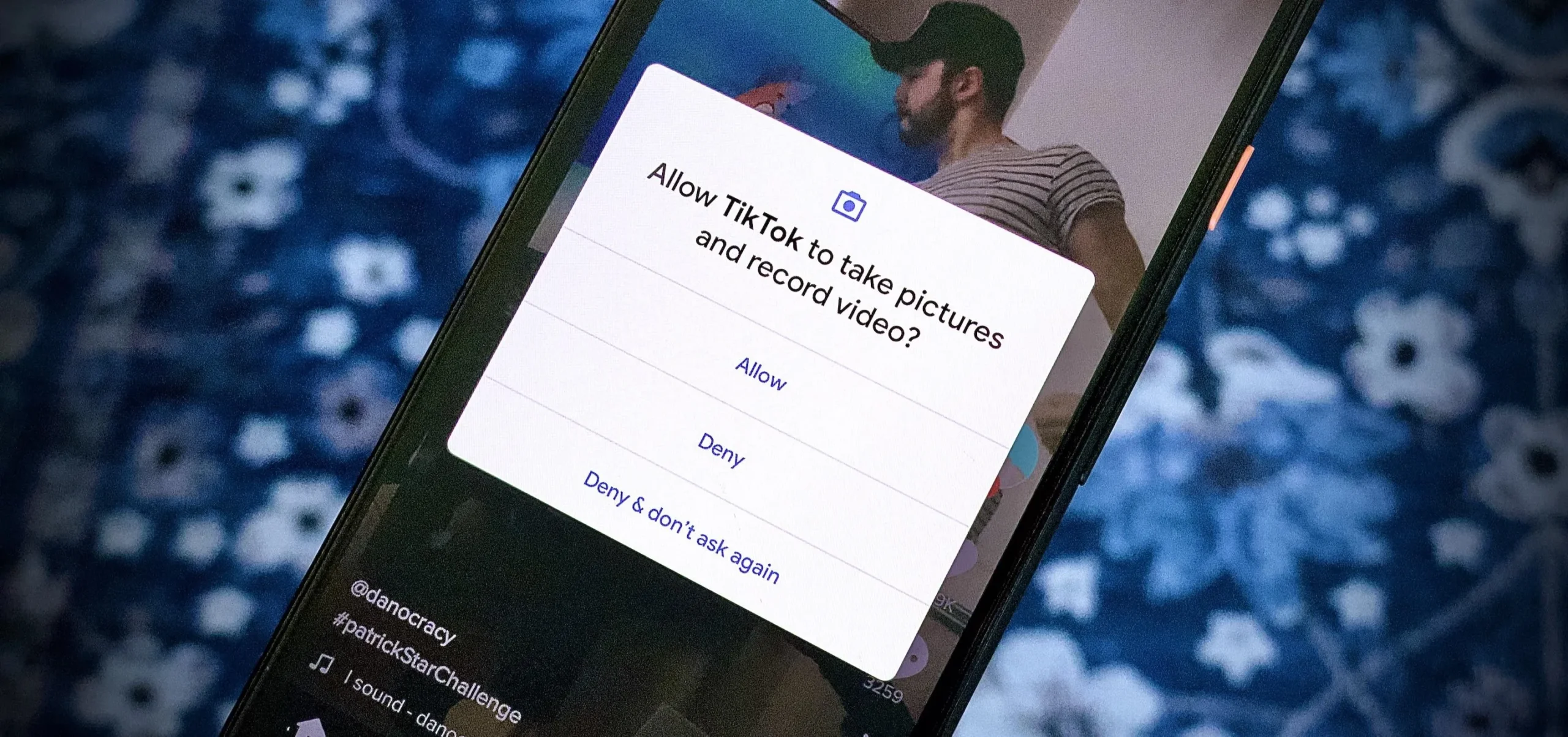
Both Android and iOS now require apps to trigger visible indicators when they access sensitive hardware. If you notice a dot at the top of your screen and you are not actively taking a photo or recording audio, that is your first red flag.
The Tool Desk
Outbyte Driver Updater FREEFix the driver behind crashes, sound loss and screen glitchesFind Drivers →Outbyte PC Repair FREERepair Windows errors before they cause bigger problemsFix Now →Look for the Dot
A green dot usually means the camera is active. An orange dot means the microphone is in use.
Check the Source
Swipe down from the top of your screen to open Control Center on iOS or Quick Settings on Android.
Shopping ad

- Privacy Protection: CloudValley webcam cover is designed for those who prioritize privacy, security, and peace of mind when using laptops, tablets, and computers
- Fashion Design: The space aluminum alloy webcam cover features a subtle design which compliments the beautiful aesthetic of top devices
- Ultra-Thin Design: Measures only 0.023 (0.6 mm) inch thin, ensuring it does not interfere with closing your laptop or device while providing reliable camera coverage
- Broad Compatibility: Works flawlessly with most laptops (MacBook, HP, Dell, Asus, Acer, Lenovo), All-in-One PCs and leading tablets including iPad, Surface Pro, Galaxy Tab, Fire HD, and Google Pixel Tablet
- Simple to Use: Only need to align to the webcam, attach and press it firmly for 15 seconds. Does not interfere with web use or indicator light
Identify the App
At the top of the panel, your phone will display which app is currently using that sensor. Sometimes it is obvious. Sometimes it is not, and that is when you should pay attention.
Step 2: Conduct a Permission Audit (The 2026 Checklist)
This step sounds boring, but it is probably the most important. Apps often ask for broad permissions early on, and most of us tap “Allow” without really thinking. Over time, that adds up.
For Android Users
Go to Settings, then Security & Privacy.
Tap Privacy and select Permission Manager.
Choose Camera to see which apps have access.
Change permissions to “Ask every time” or “Don’t allow” for anything that does not genuinely need it. A calculator, for example, has no good reason to use your microphone.
Repeat the same process for the Microphone.
For iOS Users
Open Settings and go to Privacy & Security.
Tap Microphone or Camera.
Review the list of apps carefully and toggle off access for anything that seems unnecessary or simply unfamiliar.
It helps to do this monthly. Not because apps are evil by default, but because updates change behavior, sometimes quietly.
Step 3: Use System-Wide Privacy Toggles
Modern systems now include a kind of emergency brake. You can shut down access to sensors across the entire device, which is surprisingly useful.
Crashes, No Sound, or Screen Glitches?
Random freezes, missing sound and display glitches usually trace back to one bad driver. Find and replace yours safely.Free scan · under a minuteWindows Errors? Fix Them Before They Spread
Repair common Windows errors and clear accumulated junk for a smoother, more stable PC - no reinstall needed.Free scan · no reinstallShopping ad

- Note: Not suitable for MacBooks released after 2023 or devices with a protruding front camera; Not applicable to full-screen or notch-style tempered glass screen protectors; Do not use on the rear camera of the phone.
- 💻 Why Do You Need a Webcam Cover Slide? — Safeguard your privacy by covering your webcam with our reliable webcam cover when not in use. Don't let anyone secretly watch you. Stay protected!
- ✅ Thin & Stylish — Enhance your laptop's functionality and aesthetics with our 0.027" ultra-thin webcam covers. Seamlessly close your laptop while adding a touch of sophistication.
- ✅ Fits Most Devices — Compatible with laptops, phones, tablets, desktops! Keep your privacy intact on Ap/ple, Mac/Book, iPh/one, iP/ad, H/P, L/novo, De/ll, Ac/er, As/us, Sa/msung devices.
- ✅ 365 Days Protection — Our upgraded 3.0 adhesive ensures a strong hold that won't damage your equipment. Experience reliable, long-term privacy protection day in and day out.
On Android, swipe down into Quick Settings and look for toggles labeled “Camera Access” and “Mic Access.” Turning these off blocks all apps, even system ones, from using those sensors.
On desktops and laptops running Windows 11, go to Settings, then Privacy & Security, then App Permissions. From there, you can disable camera or microphone access system wide.
This is especially helpful during private meetings or when you simply want peace of mind for a while.
Step 4: Scan for Hidden Spyware (Stalkerware)
Some malicious apps do not want to be noticed at all. They hide from your home screen and run quietly in the background.
Free tools Windows power users keep installed
One-click scans. No signup required.
Check the Full App List
Go to Settings, then Apps, then See all apps. Look closely for generic names like “System Service” or “Battery Optimizer” that you do not remember installing.
Monitor Battery and Data Usage
Unexplained battery drain or sudden spikes in data usage can be a sign that something is recording or uploading in the background.
Shopping ad

- 【Premium Webcam Cover】This webcam privacy cover is an accessory of computer webcam. No worry about interfering with web camera lens use or indicator light; No damage to your device in any way as well. A helpful privacy protector and dust separator
- 【Privacy Protector】Slide the web camera cover over your webcam lens when not in use, and prevents web hackers from Spying on you. It is perfect to provide privacy security and peace of mind to individuals, groups, organizations, companies and governments. It also protects your camera lens from dust, and keeps it in high-definition resolution all the ways
- 【Durable Material】The web cam cover is made of high-strength plastic, which ensures that your privacy is protected for a long and lasting period of time. The back of the web camera privacy cover slide also has a strong 3M adhesive layer. It helps the privacy protector stick firmly to your device. The most convenient, super thin design, and extra mini size, make it perfectly combine with your devices
- 【Wide Compatibility】This webcam cover is compatible with most popular webcams with flat area surrounding lens or with protruding lens, such as Logitech HD Pro Webcam C920 C920x C930e and C922, Logitech C615 and C270 (NOT fit Logitech C910, B910, C310). It can be also used as a cover for the peep hole on door
- 【For Logitech Webcam Cover】 The streamcam cover kit comes with 2 pack. Please clean the lens surface before applying. Make sure the mounting surface is cleaned completely so that it sticks properly and firmly
Use a Scanner
Run a deep scan with a trusted security tool such as Malwarebytes or Certo. These tools are designed to detect hidden processes that standard app lists might miss.
Step 5: Implement Physical Protections
Software can be patched or bypassed. Physics, for the most part, cannot.
Webcam Covers
A simple sliding cover for your laptop or tablet camera is and effective. It is not elegant, perhaps, but it works.
Mic Blockers
These are small 3.5mm plugs that make your phone think an external microphone is connected, effectively disabling the internal one.
Privacy-First Hardware
If you are a journalist, activist, or someone who deals with sensitive information regularly, devices like the Purism Librem 5 or the Punkt MC03 are worth considering. They include physical switches that disconnect the camera and microphone at the hardware level.
Taken together, these steps do not guarantee perfect privacy. Nothing really does. But they significantly raise the bar, and often that is enough. Being deliberate, even a little cautious, goes a long way in 2026.
Shopping ad
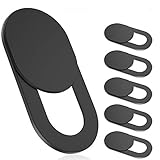
- 【Protect Privacy Security】Focusing on network security, now we can easily and effectively protect personal and family privacy security , Just gently slide the slide and close the camera, you can stop the intrusion of hackers.
- 【 Ultra Thin Design】The new ultra-thin design, with a thickness of only 0.022 inches, is made of flexible ABS material and is not fragile. Will not affect the closing of the laptops and scratch the laptops.
- 【Easy to install】 Strong adhesive makes the cover not fall, keep the screen clean and free of stains during installation, tear off the adhesive tape on the back, align it with our camera, and press hard for 10 seconds to work.
- 【Compatible with 】Compatible with camera for Laptop, tablet, computers, Echo Show and Apple Devices,as: MacBook Pro,Macbook Air,iMac ,Mac mini,iPad,MacBook Air, iPhone 6/7/8 Plus etc front camera .
- [What you get] 6 pack black webcam covers.
Frequently Asked Questions (FAQ)
Q: Is my phone always listening to me for advertising?
A: While tech giants deny “constant” listening, many apps use “trigger word” detection. Restricting microphone permissions to “Only while using the app” prevents these apps from listening in the background.
Q: Can an app turn on my camera without the green light appearing?
A: On modern, updated versions of iOS and Android, the light is tied to the hardware at a system level. It is extremely difficult for standard apps to bypass this, though advanced government-grade spyware occasionally finds workarounds.
Recommended Free Tools
Q: Why does my camera light turn on when I unlock my phone?
A: This is usually due to Face ID or Face Unlock features. The system is using the camera to verify your identity.
Q: Does “Force Stop” an app prevent it from using the mic?
A: Yes, temporarily. However, many apps are designed to restart themselves automatically. The only permanent fix is revoking the permission or deleting the app.
Do these 3 things before closing this tab:
1Scan for outdated or missing drivers - takes under a minute2Repair Windows errors before they cause bigger problems3Fix the driver behind crashes, sound loss and screen glitchesQuick Recap
Product prices and availability are accurate as of the date/time indicated and are subject to change. Any price and availability information displayed on Amazon at the time of purchase will apply.

