The Tool Desk
Outbyte PC Repair FREERepair Windows errors before they cause bigger problemsFix Now →Outbyte Driver Updater FREEFix the driver behind crashes, sound loss and screen glitchesFind Drivers →Inferse is reader-supported. When you buy through links on our site, we may earn an affiliate commission. As an Amazon Associate I earn from qualifying purchases. Learn more
Free subtitle generators are usually sufficient for a short online-course pilot, one language, and an instructor who can review every line. Paying becomes worthwhile when free-minute limits, watermarks, short upload limits, translation needs, multiple reviewers, or repeated corrections delay publishing. The practical decision is not simply accuracy: measure your monthly video minutes, correction time, language requirements, export format, branding, collaboration, and privacy needs.
Use captions for accessibility in the spoken language, and subtitles when you also need a translated language. The W3C distinction between captions and subtitles matters: accessible captions include dialogue plus meaningful sound information and speaker identification when those details affect understanding.
At a glance
The five tools below are listed alphabetically, not ranked. The table reflects capabilities and plan information available in November 2026; verify limits before committing to a course-production schedule.
Quick wins for a faster PC:
Repair Windows errors before they cause bigger problemsFix Now →Scan for outdated or missing drivers - takes under a minuteDriver Scan →| Name | Best for | Key spec | Free plan / price | Checked |
|---|---|---|---|---|
| Aegisub | Manual subtitle timing and styling on a desktop | Precise line timing and visual styling | Free desktop subtitle editor; no subscription tier | November 2026 |
| Kapwing | Browser editing, transcript correction, and translation | Word-by-word subtitles; SRT, VTT, and TXT export | Free tool with limited minutes and watermarked exports; Pro adds minutes and removes the watermark (price varies) | November 2026 |
| Subtitle Edit | Local, hands-on correction of existing transcripts | Desktop subtitle timing and formatting | Free desktop subtitle editor; no subscription tier | November 2026 |
| VEED | Browser-based automatic captions and branded exports | Auto subtitles from video or audio; SRT, VTT, and TXT download | Free to start; Creator starts at $20/month; paid access supports longer videos and subtitle-file downloads | November 2026 |
| YouTube Studio | Adding and editing caption tracks on a hosted course video | Upload a caption file or enter and edit text in Studio | Free with a YouTube channel; no separate paid subtitle tier | November 2026 |
Prices checked November 2026.
Are free subtitle generators good enough for an online course?
They are good enough when the pilot is short, the spoken language is the only language required, one person can review every caption, and the export works in your learning-management system (LMS). A representative lesson should be your test: include technical terms, names, numbers, equations, code, more than one speaker, diagrams, and the same audio quality used in production.
Shopping ad

- Studio-Quality Sound for Clear Podcast Recording – The K66 USB podcast microphone delivers studio-quality, broadcast-level audio using a high-performance condenser capsule and cardioid pickup pattern that focuses on your voice while reducing unwanted background noise. Designed as a reliable microphone for PC, it features a wide 40Hz–18kHz frequency response and a 46kHz sampling rate to reproduce rich lows, smooth mids, and clear highs for natural, detailed vocals. With –45dB ±3dB sensitivity, it captures balanced sound without distortion during expressive speaking. Ideal for podcasting, voice-over, online classes, meetings, and professional content creation.
- Intelligent Noise Reduction Mode for Cleaner Podcast Audio – This podcast microphone features an advanced Noise Reduction Mode designed for clearer, more focused voice recording in real-world environments. Press and hold the mute button to enable noise reduction (blue indicator). In this mode, the microphone helps reduce keyboard clicks, PC fan noise, air conditioner hum, and background chatter. Default Mode maintains a warm, natural vocal tone for quiet spaces. Designed as a reliable microphone for PC, it allows creators to identify the active mode instantly and adapt as needed, ensuring clear audio for podcasting, gaming, streaming, online classes, meetings, and recording.
- True Plug-and-Play USB Microphone with Wide Device Compatibility – Engineered for effortless plug-and-play use, the K66 USB microphone requires no drivers, apps, or software installation. Simply connect and start recording on Windows PC, Mac, laptops, PS4, PS5, and tablets. Included USB-C and Lightning adapters ensure seamless compatibility with iPhone, iPad, and modern USB-C phones and devices, making it easy to switch between desktop and mobile recording. Ideal for creators working across multiple platforms, this microphone delivers consistent, high-quality audio for YouTube, TikTok, Twitch, Zoom, Discord, OBS Studio, Streamlabs, podcasting, livestreaming, and professional voice recording.
- Real-Time Zero-Latency Monitoring with Adjustable Volume Control – This podcast microphone features real-time, zero-latency monitoring through a built-in 3.5mm headphone jack, allowing you to hear exactly what’s being recorded without delay. Designed as a reliable microphone for PC, it includes a dedicated monitoring volume control that lets you adjust headphone listening levels independently for accurate and comfortable audio monitoring. Real-time feedback helps identify distortion, background noise, or uneven volume before it affects your final recording, making this podcast microphone ideal for podcasting, streaming, online teaching, voice-over work, and professional content creation.
- Precision Audio Adjustment Knobs for Full Sound Control – This podcast microphone gives creators hands-on control with dedicated knobs for microphone volume, monitoring volume, and echo adjustment. Fine-tune mic gain to maintain clear, balanced vocal output, adjust headphone monitoring levels independently for comfortable listening, and add or reduce echo to enhance depth and presence. Designed as a reliable PC microphone, these intuitive physical controls allow fast, on-the-fly adjustments without software, helping identify distortion, background noise, or level inconsistencies instantly. Ideal for podcasting, streaming, ASMR, voice-overs, singing, and professional multi-platform recording.
Free plans become uncomfortable when a course catalog exceeds the included minutes, a lesson is longer than the upload limit, a watermark appears on exports, or a clean SRT/VTT file is required for an LMS. Translation, reusable style presets, shared review, larger storage, and predictable processing queues are common reasons to pay. Do not assume a subscription automatically improves recognition accuracy; the strongest documented difference is usually capacity and delivery flexibility.
What should a free pilot check?
- Whether the full lesson uploads without splitting.
- Whether every caption can be edited and timed precisely.
- Whether the account lets you retain an SRT, VTT, or TXT file.
- Whether free video exports contain a watermark or reduced resolution.
- Whether the LMS accepts the selected file type and lets learners switch captions on and off.
- How much time you spend correcting terminology, punctuation, timing, and speaker labels.
1. Aegisub: who it suits
Aegisub is a desktop subtitle editor for creators who already have a transcript and need detailed control over timing, line breaks, and appearance. It is not a browser service that automatically converts a lecture into a finished transcript, so you supply or create the text first. That can suit a small course in which privacy requires local files and an instructor is willing to do the correction work manually.
The software is free to use and has no subscription plan or metered cloud minutes. Its practical limit is workflow capacity: transcription, synchronization, and review remain your responsibility, and team members need a way to exchange project and subtitle files. There is no paid upgrade price to compare; the trade-off is staff time rather than a monthly allowance.
Choose this route when you need frame-level timing or styling and can keep source audio and student material off a cloud editor. It is less suitable when you need automatic speech recognition, one-click translation, browser collaboration, or a vendor-managed publishing pipeline.
2. Kapwing: who it suits
Kapwing is a browser editor that accepts MP4, MOV, MP3, and a published-video link, then creates a word-by-word subtitle track and editable transcript. You can correct timing, change the visual treatment, export a hardcoded video, or download SRT, VTT, or TXT. Its subtitle tool page also documents translated subtitles.
The free tool is useful for a pilot but has limited subtitle minutes, and free exports carry a watermark. The exact allowance can change, so check the account before promising to caption an entire catalog. Pro provides extended monthly minutes for subtitles and translated subtitles and removes the free-export watermark; the supplied pricing information does not establish a single current dollar figure, so confirm the price shown for your region and billing cycle.
Upgrade when a watermark undermines course branding, your monthly minutes regularly exceed the free allowance, or translation is part of the product promise. A paid tier can also make repeated work more consistent through saved styles and a larger browser-based workflow, but every translated or automatically generated track still needs a fluent, subject-aware review.
What’s actually slowing this PC down?
Pick the symptom - the matching free tool is one click away.
Shopping ad
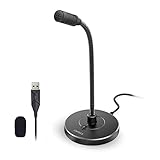
- 【Crystal Clear Audio Quality】Our Omnidirectional pattern condenser microphone accurately captures your voice, making it perfect for dictation, online classrooms, and more.
- 【Active Noise-Cancelling】Come in CMTECK CCS2.0 SMART CHIP with Omnidirectional Polar Pattern, which can effectively block the background noise. The pop filter prevents plosives from overloading the microphone, ensuring only your voice is heard.7
- 【Convenient Mute Button with LED Indicator】You can quickly mute/un-mute the microphone with the Mute Button and the built-in LED light lets you know the working status(Greenlight: Connected; Red light: Mute mode).
- 【Easy to use】 No drivers needed, just plug and record without external power supply, directly connect the microphone to a USB compatible device, well compatible with Windows(7, 8 and 10), Mac OS and PS4 (NOT compatible with Raspberry Pi/Linux/Android)
- 【Mini size with Adjustable Gooseneck】Adopted flexible and adjustable gooseneck metal pipe, easily adjust position 360 degrees to suit user comfort. The compact and stable base maximizes your desktop space.
Kapwing workflow for a lesson
- Upload the lesson or paste its published-video link.
- Generate subtitles in the spoken language.
- Search the transcript for course terms, names, numbers, and acronyms.
- Correct wording and timing while listening to the audio.
- Translate only after the source-language track is clean.
- Export the file your LMS accepts, or render a captioned video if the platform requires burned-in text.
3. Subtitle Edit: who it suits
Subtitle Edit is a free desktop editor for creating and correcting timed subtitle files locally. It suits an instructor or accessibility reviewer who wants direct control over synchronization, segmentation, and formatting without sending unreleased lessons to a browser service. It can be paired with a transcript produced elsewhere, then used for detailed quality control before LMS upload.
There is no subscription plan, cloud-minute allowance, or paid export tier in this comparison. The constraint is human labor: you must obtain the transcript, identify speakers where needed, add meaningful non-speech cues, and check reading speed and line breaks. Collaboration also requires a separate file-sharing or version-control process.
Select it when privacy, local processing, and fine-grained correction matter more than automatic generation. It is not the natural fit for a large multilingual catalog that needs automatic transcription, translation queues, shared browser review, or branded video rendering in one place.
4. VEED: who it suits
VEED provides an online automatic-subtitle workflow for video and audio. Its documented steps are to upload a file, choose Auto Subtitle, select the language, edit the transcript and style, then burn subtitles into the video or download SRT, VTT, or TXT. The VEED auto-subtitle page explicitly includes podcast recordings and voice memos as audio inputs, which is useful when a lecture exists only as a recording.
VEED is free to start. The free allowance and export restrictions can change, so inspect the current account limits before building a publishing calendar. The Creator plan starts at $20 per month according to the vendor page; paid access supports longer videos and subtitle-file downloads. Confirm whether your chosen billing interval, storage needs, and export resolution alter the displayed price.
Creator is sensible when a course contains long lessons, the free workflow blocks subtitle-file downloads, or you need a repeatable browser process for many modules. It can reduce delivery friction, but it does not remove the need to correct technical vocabulary, verify timing, and review translated output. Paying for capacity is different from buying a guaranteed accuracy improvement.
What to review in a VEED draft
- Technical terms, product names, formulas, code, and numbers.
- Speaker changes and meaningful sounds such as applause or warning tones.
- Line breaks that do not cover slides, demonstrations, or lower-third labels.
- Export behavior on both desktop and mobile playback.
5. YouTube Studio: who it suits
YouTube Studio is useful when the course video is hosted on YouTube and you need to add or correct a caption track there. You can add a language, upload a caption file, or enter and edit text in Studio; the YouTube caption instructions describe that workflow. It is a destination and editing interface rather than a full course-production suite.
Shopping ad

- [Convenient Setup] Plug and play recording USB microphone for PC, with 5.9-Foot USB cable included for computer PC laptop, is connected directly to USB-A port for recording music, computer singing or podcast. The office condenser microphone for computer is easy to use and install. (NOT compatible with Xbox and Phones)
- [Durable Metal Design] Solid sturdy metal construction design, the computer microphone for Zoom meetings with stable tripod stand is convenient when you are doing voice overs or livestreams on YouTube. Durable material extends the service life of the voice-over microphone.
- [Mic Volume Knob] Gaming condenser USB mic compatible for PS4 with additional volume knob itself has a louder or quieter adjustment and is more sensitive. Your voice would be heard well enough through the zoom microphone USB when gaming, skyping or voice recording. Also, you can adjust your volume to zero and protect your privacy.
- [Widely Use] USB-powered design, the condenser microphone for recording no need the 48v Phantom power supply, works well with Cortana, Discord, voice chat and voice recognition. The podcast microphone for Mac, with USB-B to USB-A/C cable, is compatible with desktop, laptop or PS4/PS5, which meets most of your daily recording needs.
- [Clear Output Voice] Cardioid condenser microphone for PC captures your voice properly, producing clear smooth and crisp sound. Great computer recording mic for gamers/streamers/youtubers focus on the main source and reduces background noise. The streaming microphone does the job well for broadcast ,OBS and teamspeak.
Studio is free with a YouTube channel and has no separate paid subtitle plan. The relevant limits are tied to your hosting setup, file workflow, and the caption options available to the channel, not a paid subtitle-minute bundle. If your LMS requires a downloadable SRT or VTT independent of YouTube, keep a master subtitle file outside Studio so later platform changes do not force a re-edit.
This option suits a public or unlisted video workflow in which one publisher manages captions in the hosting platform. Choose a dedicated editor instead when you need private lesson storage, batch processing, shared review, translation management, or a caption file that must travel across several LMSs.
When should I upgrade from a free caption tool?
Upgrade when a recurring constraint costs more time or creates learner-facing compromises than the subscription. Typical triggers are a catalog that exceeds free minutes, lessons that cannot upload in one piece, watermarked exports, unavailable subtitle-file downloads, translation requirements, several reviewers, or correction work that repeatedly delays release.
Use a simple workload model before paying. For one representative lesson, record its duration, automatic-generation time, correction time, translation and review time, and export steps. Multiply those figures by planned monthly minutes, then compare the result with the free allowance and the paid plan’s capacity. This gives you a course-specific decision without pretending there is a universal cost-per-minute or accuracy threshold.
When staying free makes sense
- The pilot has only a few lessons and one language.
- You can listen through every caption and fix errors yourself.
- The LMS accepts the free export without a watermark or damaging resolution.
- You do not need team roles, translation queues, or large storage.
- Your privacy policy permits the chosen upload workflow.
When paying is justified
- Free minutes or clip-length limits interrupt production every month.
- A watermark or hardcoded export conflicts with your visual identity.
- You need clean SRT/VTT files, longer videos, or predictable batch processing.
- You publish translated versions and need retained timing plus reviewer access.
- Several people must correct, approve, and archive the same lesson.
Do I need captions or subtitles for my course?
Most courses need source-language captions when learners may be deaf or hard of hearing, watch without sound, or need text to follow dense instruction. A translated subtitle track serves learners who understand another language; it does not replace an accessible source-language caption track when non-speech information or speaker changes matter.
Outdated Drivers Are Slowing You Down
One free scan finds every outdated or missing driver and matches the right update for your exact hardware.Free scan · exact hardware matchPC Slower Than It Used to Be?
A free scan shows the junk files, broken settings and background clutter dragging Windows down - then fixes them in one click.Free scan · Windows 10 & 11Follow the W3C guidance by conveying equivalent meaning, synchronizing text with speech, identifying speakers when necessary, and including meaningful sounds. Check the laws, contracts, institutional policies, and audience requirements that apply to your course rather than assuming one rule covers every seller.
How do I export an SRT or VTT file for my LMS?
Generate and correct the source-language track, then choose the LMS-supported format from the editor’s download menu. VEED and Kapwing document SRT, VTT, and TXT exports; YouTube Studio documents uploading a caption file, while desktop editors can save a timed subtitle file for upload.
Shopping ad

- SOUND QUALITY: Amazon Basics condenser microphone with large 14mm diaphragm delivers high sensitivity, low noise & low distortion for clear sound pickup during streaming & recording
- CARDIOID PICKUP: Cardioid pickup pattern effectively isolates background noise, ensuring clean sound for podcasting, music recording, solo vocals & instruments in black sleek design
- PLUG & PLAY: USB microphone requires no additional drivers for instant setup; cable can be detached & mic installed on tripods, boom arms or stands with standard 5/8 inch thread
- MUTE FUNCTION: Built-in 1-tap mute function syncs with your laptop or PC for convenient silent mode during real-time conferences, online streaming & broadcasting
- SYSTEM COMPATIBILITY: Compatible with Windows OS 7, XP, 8, 10 or higher & Mac OS 10.10 or higher, along with streaming & broadcasting applications on laptops
Before publishing, verify the LMS’s exact extension, encoding, language label, and whether captions are switchable. Keep the editable master and a correction log so a later terminology change can be applied to every language instead of rebuilding each lesson.
Which tool handles course terminology accurately?
No automatic tool can be assumed to recognize your terminology without review. Build a glossary of names, acronyms, formulas, code, and assessment instructions; run a representative lesson through the selected workflow; and measure the correction time you actually incur.
Free tools Windows power users keep installed
One-click scans. No signup required.
Search-and-replace, editable transcripts, and reviewer access are often more valuable than a vendor’s general accuracy claim. Kapwing publishes a “99% accurate subtitles” figure on its page, but that is a vendor-published statement, not independent accuracy research, so course-specific review remains necessary.
Independent reader supportYour contribution helps us test, update, and keep practical guides available for everyone.How much time does automatic captioning save?
The saving depends on audio quality, speaker changes, terminology, and how strict your accessibility review must be. The supplied evidence does not establish a universal correction-time or cost-per-minute benchmark.
Track one lesson from upload through approved export. Include listening, rewinding, timing fixes, speaker labels, translation review, and LMS testing; then compare that total with your manual alternative and monthly plan cost.
Can I translate one course into several languages?
Browser editors such as VEED and Kapwing document translation workflows, but translation should follow a clean source-language caption track. Have a fluent reviewer check names, idioms, technical vocabulary, and assessment instructions, and confirm that timing still leaves enough reading time.
Recommended Free Tools
Keep language tracks versioned separately and record terminology decisions in your correction log. A paid plan may increase translation minutes or remove export restrictions, but it does not substitute for subject-aware review.
Shopping ad

- Cardioid Pick-up: Cardioid pickup pattern that captures clear and crisp voice in front of the mic and suppresses unwanted background noise. Design for chatting, teleconferencing, recording, podcast
- For Podcast: Equipped with a non-slip stand that adds stability while occupying a small desktop area. One-click mute and volume control for easy operation during the recording. The shock mount and pop filter can prevent recordings from being disturbed by vibration
- Strong Compatibility: TC-777 is multi-device and program compatible, you can use it on Windows, MAC, PS4 and 5. It can also be quickly recognized by Zoom, Skype, Discord, allowing you to start creating or communicating immediately. (Not compatible with Xbox)
- Plug & Play: With a USB 2.0 data port, the TC-777 is plug and play, with no additional drivers or assembly process required. The angle of both microhone and pop filter can be adjusted as needed to achieve the best audio effect
- What's In the Box: 1 x Microphone with Power Cord(1.9m), 1 x Foldable Mic Tripod, 1 x Mini Shock Mount, 1 x Pop Filter and 1 x Manual
Will a free tool put a watermark on my lessons?
Kapwing states that free exports contain a watermark. Other tools can change free export rules, resolution, or download access, so inspect the current account before recording a full catalog.
If branding or learner distraction makes a watermark unacceptable, calculate the paid plan against the number of lessons you publish rather than against a single trial video. A switchable caption track is usually easier to revise than text permanently rendered into every frame, subject to your platform and design brief.
How should I review every caption before publishing?
- Prepare clear audio. Keep speech distinct from music and effects; a USB microphone can improve the recording input, but it does not generate subtitles.
- Generate a draft. Upload the lesson, select the spoken language, and create automatic captions where the tool supports them.
- Listen and correct. Fix names, acronyms, numbers, punctuation, equations, code, and domain terms while replaying ambiguous passages.
- Add missing information. Include speaker labels and meaningful non-speech cues that affect understanding.
- Check timing and layout. Ensure captions appear with speech, remain readable, break at sensible phrases, and do not hide demonstrations or formulas.
- Translate last. Review each translated track with a fluent subject-matter reviewer.
- Apply a consistent style. Use readable size, high contrast, safe placement, and a repeatable preset.
- Export and test. Check captions on desktop and mobile, with captions toggled on and off, before release.
- Maintain a correction log. Reuse recurring terms and speaker names to estimate whether a paid workflow reduces repetitive work.
What privacy and governance issues matter?
Cloud editors may process unreleased lessons, licensed footage, student interviews, or assessment content. Review current retention, sharing, deletion, account-role, and training-use controls before uploading sensitive material. If a client or institution requires local processing, use a desktop workflow or obtain approval rather than assuming a browser editor works offline.
Keep an original recording, the corrected source-language file, translated files, and the final rendered video under version control. Limit editor access to the people who need it, and document who approved accessibility and translation quality.
How do I choose a tool for the next module?
- Count minutes and lesson length. Include the longest module, not only a short demo.
- Define output. Decide whether the LMS needs SRT, VTT, TXT, a switchable track, or burned-in captions.
- Set quality requirements. List terminology, speaker labels, non-speech cues, reading speed, and mobile behavior.
- Plan languages and reviewers. Identify translation languages, fluent reviewers, and approval ownership.
- Check governance. Confirm storage location, retention, deletion, and institutional policy.
- Run one representative lesson. Record correction and export time, then compare the recurring workload with free limits and paid capacity.
For a small, private pilot, a free browser tool or local editor can be enough. For a growing catalog, paying is justified when it removes a repeated bottleneck—capacity, clean delivery, translation, or collaboration—rather than because a plan promises a generic accuracy percentage.
Frequently Asked Questions
Can I use automatic captions for graded quizzes and assessments?
Use them as a draft, then review every question, answer choice, number, and negation against the audio. A single transcription error can change an assessment’s meaning, so keep an approved caption file with the assessment version.
Should captions be burned into the video or uploaded as a separate track?
A separate SRT or VTT track is generally easier to revise, translate, and toggle, while burned-in text guarantees visibility on players that lack caption controls. Confirm the LMS and design requirements before choosing; many courses keep both a master track and a rendered fallback.
How do I caption a lecture with two instructors speaking?
Choose a workflow that lets you insert speaker labels during review, and mark overlapping speech honestly when it cannot be separated. Test the result with captions enabled and make sure labels do not obscure slides or demonstrations.
What should I keep after publishing a captioned lesson?
Archive the original audio or video, corrected source-language captions, each translation, the final render, and a correction log. Record the terminology decisions and approval date so future updates do not restart the review from scratch.
Quick Recap
Product prices and availability are accurate as of the date/time indicated and are subject to change. Any price and availability information displayed on Amazon at the time of purchase will apply.