What’s actually slowing this PC down?
Pick the symptom - the matching free tool is one click away.
Inferse is reader-supported. When you buy through links on our site, we may earn an affiliate commission. As an Amazon Associate I earn from qualifying purchases. Learn more
The right backup software for a Windows PC depends on what you need to restore. Veeam Agent for Microsoft Windows Free suits people who want no-cost whole-PC imaging and bootable recovery; Acronis True Image suits those who want imaging, integrated cloud storage and malware protection in a subscription; and Macrium Reflect X Home suits readers who prioritize image recovery using their own storage. Microsoft Windows Backup serves a different purpose: protecting selected folders and making migration to another PC easier.
Choose the recovery job before the application. Recovering yesterday’s document, replacing a failed system drive and moving to a new computer require different capabilities. The five products below are listed alphabetically, not ranked. A dependable setup also needs a separate backup destination, an off-site copy and a recovery procedure you have checked.
At a glance
Comparison checked November 2026. Licensing descriptions are not price quotations; confirm the edition, device allowance and renewal terms before purchasing.
| Name | Best for | Free plan / licensing | Platforms | Checked |
|---|---|---|---|---|
| Acronis True Image | Combining PC imaging, integrated cloud storage and malware protection | Subscription-only model | Windows | November 2026 |
| Macrium Reflect X Home | Image-focused recovery with user-managed local or network storage | Home edition | Windows | November 2026 |
| Microsoft Windows Backup | Selected-folder protection and account-based migration to another PC | Included Windows application; cloud storage needs separate consideration | Windows 10 and Windows 11 guidance | November 2026 |
| Perfect Backup | Readers evaluating another dedicated Windows backup utility against a specific recovery checklist | — | Windows | November 2026 |
| Veeam Agent for Microsoft Windows Free | No-cost whole-PC imaging and bootable bare-metal recovery | Free edition | Windows | November 2026 |
There are no dollar amounts in this comparison. For a purchase, use the product’s current checkout terms rather than assuming a review’s quoted price still applies to the same edition, subscription period or number of PCs.
Shopping ad

- World’s First 6TB 2.5” Portable Hard Drive
- Plug-and-play expandability
- Vast capacities up to 6TB[1] to store your photos, videos, music, important documents and more
- SuperSpeed USB 3.2 Gen 1 (5Gbps)
What should you decide before choosing Windows backup software?
Start with the failure you need to recover from, then choose software that explicitly supports that recovery. A convenient folder backup is not automatically a way to rebuild Windows after a drive dies.
| Your recovery goal | Capability to look for | What is not enough by itself |
|---|---|---|
| Retrieve a deleted document or an earlier version | Versioned file backup and an accessible file-restore browser | A synchronized folder without suitable version retention |
| Replace a failed Windows system drive | System imaging, required partitions and bootable bare-metal recovery | Copies of Documents and Pictures alone |
| Move personal content and preferences to a new PC | Account-based migration and supported folder and settings restoration | Assuming every desktop application and its exact state will transfer |
| Recover after ransomware or theft | A clean, separate copy that the affected PC cannot freely overwrite | One permanently attached USB drive |
| Resume work quickly after a major failure | A recovery method and storage destination fast enough for your downtime limit | A backup whose restoration process you have never checked |
Two planning terms make these choices more concrete. Your recovery-point objective, or RPO, is how much recent work you can afford to lose. Your recovery-time objective, or RTO, is how long you can afford to be without the PC or its data. NIST’s backup and recovery planning guidance uses these concepts to connect backup schedules and recovery procedures to actual needs.
If losing a day’s work is unacceptable, a once-a-day backup cannot meet that requirement throughout the day. If you need to resume work quickly after drive failure, restoring a local image may fit your plan better than downloading a large backup over a slow connection. These are planning decisions, not promises that a particular product will achieve a particular restore time.
The Tool Desk
Outbyte PC Repair FREEClear out junk files and repair common Windows errorsFree Scan →Outbyte Driver Updater FREEScan for outdated or missing drivers - takes under a minuteDriver Scan →1. Acronis True Image: who is it for?
Acronis True Image suits Windows users who want backup and security functions together, particularly when integrated cloud storage matters. Its subscription model makes it a different proposition from a free local-imaging utility.
PCWorld’s 2026 Windows backup comparison describes Acronis as combining imaging, disaster recovery, active protection against viruses and ransomware, and integrated cloud storage. That combination is relevant if you want to manage local recovery and an off-site backup within one product rather than assemble separate services.
The important distinction is between recovering a file and recovering the machine. Imaging and disaster-recovery features address the second job; cloud storage provides a possible destination outside the home. When selecting a subscription, check which capabilities belong to the exact edition, how many computers it covers and how much cloud storage it includes. Do not assume every subscription has identical entitlements.
Free access and paid model: treat Acronis as a paid, subscription-based option, not a permanent free backup plan. Any trial should be used to check the restore workflow and storage requirements before making the subscription part of your recovery plan.
Outdated Drivers Are Slowing You Down
One free scan finds every outdated or missing driver and matches the right update for your exact hardware.Free scan · exact hardware matchPC Slower Than It Used to Be?
A free scan shows the junk files, broken settings and background clutter dragging Windows down - then fixes them in one click.Free scan · Windows 10 & 11The trade-off: integrated protection adds functionality but can also add background activity. TechRadar’s backup-software coverage reports that its protection features can consume resources and lengthen boot times. That is a reported qualitative observation, not a measured performance penalty that applies equally to every PC.
Who should pay: people who will actually use the combined imaging, cloud and protection features. If you only need a local system image on your own external drive, compare that narrower requirement with the free-imaging route before committing to an ongoing subscription. Anti-ransomware features should supplement, not replace, a disconnected or otherwise protected backup copy.
2. Macrium Reflect X Home: who is it for?
Macrium Reflect X Home suits readers who prioritize system imaging and recovery controls and already have somewhere to store their backups. It is a storage-you-manage approach rather than a bundled-cloud proposition.
The 2026 Windows backup comparison published by Perfect Backup characterizes Macrium Reflect X Home as an image-recovery-focused option with user-managed local or network storage and no bundled cloud. That makes it relevant to a PC owner with an external drive or an established network-storage setup.
Its appeal is the recovery model: preserve a restorable system image rather than relying only on copies of personal folders. For a Windows installation with applications and configuration you would rather not rebuild, that distinction can matter more than whether a backup application has a long list of secondary features.
Licensing and storage: evaluate the Home edition’s current license terms alongside the storage you will supply. Do not treat the software purchase as the complete cost of the backup system. You still need sufficient destination capacity, a separate off-site strategy and somewhere safe to keep recovery information.
Shopping ad

- Easily store and access 4TB of content on the go with the Seagate Portable Drive, a USB external hard drive.Specific uses: Personal
- Designed to work with Windows or Mac computers, this external hard drive makes backup a snap just drag and drop
- To get set up, connect the portable hard drive to a computer for automatic recognition no software required
- This USB drive provides plug and play simplicity with the included 18 inch USB 3.0 cable
- The available storage capacity may vary.
Who should pay: users who specifically value an image-centered workflow and control over local or network destinations. Before purchasing, make sure you can create recovery media, access the intended backup destination from the recovery environment and restore the partitions needed to start Windows.
The trade-off: controlling your own storage also means maintaining it. A network destination needs appropriate access controls and a separate protection plan; an external drive needs a connection or rotation routine. Neither becomes an off-site backup simply because the imaging software can write to it.
Recommended Free Tools
3. Microsoft Windows Backup: who is it for?
Microsoft Windows Backup suits people who want selected personal folders and supported settings available when they move to another Windows PC. It should not be mistaken for a complete, independent system image.
Microsoft’s backup guidance describes signing in with a Microsoft account and protecting Desktop, Documents, Pictures, Videos and Music through OneDrive. Microsoft also describes restoration of supported settings, app information and Wi-Fi information when setting up another device.
That is useful for migration, but the word “apps” needs careful interpretation. Account-based restoration is not the same promise as restoring every installed program, every application’s internal data and the exact state of a failed Windows disk. If your requirement is “replace the drive and recover the installation,” look for image backup and bootable restoration instead.
Free access and paid costs: the Windows application is included, but cloud storage is a separate consideration. Check whether the folders you select fit within your account’s storage allowance. Paying for more storage addresses capacity; it does not turn folder synchronization into a bare-metal recovery system.
Who should pay: someone whose selected folders exceed their storage allowance and who wants this particular cloud-backed migration workflow. Someone seeking whole-PC disaster recovery should direct that budget toward a suitable imaging setup rather than assume additional cloud capacity supplies the missing capability.
Where do File History and System Protection fit?
Microsoft provides other recovery tools for different jobs. File History periodically backs up personal files to an external drive or network location and lets you browse earlier versions. It is useful when the problem is an overwritten document or an accidentally deleted personal file, rather than a failed operating-system disk.
System Protection creates restore points that can help reverse system-file, driver or configuration problems. Those restore points live on the PC and are not an independent, off-device backup of your personal data. Windows Backup, File History and System Protection are complementary tools, not interchangeable names for the same protection.
4. Perfect Backup: who is it for?
Perfect Backup is another dedicated Windows backup option to evaluate against a written recovery checklist. The useful question is not whether it has “backup” in its name, but whether the application’s current capabilities match the files, destinations and restoration process you require.
Free tools Windows power users keep installed
One-click scans. No signup required.
Its publisher’s Windows 11 and Windows 10 backup comparison provides a starting point for understanding the category. Keep the distinction between a comparison’s discussion of other applications and the capabilities of Perfect Backup itself: features described for another product are not automatically features of this one.
For a practical evaluation, write down three acceptance requirements before installing anything:
- Scope: specify whether you need selected folders or an entire recoverable Windows installation.
- Destination: identify the actual external drive, network location or off-site service you intend to use.
- Recovery: require a clear way to restore the files you need, and require bootable restoration separately if drive replacement is part of the plan.
Free access and purchasing: check the current license and any trial conditions directly before making it part of a long-term backup routine. A useful trial must let you assess restoration as well as job creation; simply seeing a completed backup is not sufficient validation.
Shopping ad
- Easily store and access 1TB to content on the go with the Seagate Portable Drive, a USB external hard drive.Specific uses: Personal
- Designed to work with Windows or Mac computers, this external hard drive makes backup a snap just drag and drop. Reformatting may be required for Mac
- To get set up, connect the portable hard drive to a computer for automatic recognition no software required
- This USB drive provides plug and play simplicity with the included 18 inch USB 3.0 cable
- The available storage capacity may vary.
Who should pay or upgrade: only a reader whose required recovery capability is explicitly included in the edition or service being purchased. Do not pay for additional copying or scheduling functions if the unresolved requirement is rebuilding a non-booting PC. Keep this evaluation requirements-led rather than assuming it is interchangeable with the image-focused options above.
Quick wins for a faster PC:
Fix the driver behind crashes, sound loss and screen glitchesFind Drivers →Repair Windows errors before they cause bigger problemsFix Now →Scan for outdated or missing drivers - takes under a minuteDriver Scan →5. Veeam Agent for Microsoft Windows Free: who is it for?
Veeam Agent for Microsoft Windows Free suits technically comfortable users who want whole-PC imaging and bootable bare-metal recovery without paying for the backup application. You still supply and protect the storage.
The 2026 Windows backup comparison identifies whole-PC imaging and bootable recovery as capabilities of the Free edition. Those are the relevant features when a failed system drive—not just a missing document—is the failure you want to prepare for.
Free-plan scope: the core no-cost use case here is a recoverable PC image. “Free” does not mean that cloud capacity, an external drive, an off-site copy or a managed business-backup service is included. Build those costs and responsibilities into the plan separately.
Who should upgrade: do not assume a paid upgrade is necessary merely to obtain the whole-PC imaging described here. Consider paid offerings when you have a specific additional management, support or deployment requirement, and verify that requirement against the relevant edition before purchasing.
Do these 3 things before closing this tab:
1Repair Windows errors before they cause bigger problems2Scan for outdated or missing drivers - takes under a minute3Clear out junk files and repair common Windows errorsVeeam’s broader documentation also needs an edition boundary. Its Backup Copy documentation for Backup & Replication describes maintaining additional backup instances on-site or off-site, with retention and archived full backups. That documentation is not a promise that the free Windows agent includes the same orchestration.
The trade-off: this approach puts more responsibility on the PC owner to design storage, retain usable recovery media and verify restoration. It fits someone willing to manage those tasks; it is less attractive if the main requirement is a consumer-oriented bundle with cloud storage already integrated.
How were these options selected?
The selection covers distinct recovery approaches: integrated subscription backup, specialist imaging, built-in Windows migration, another dedicated Windows utility and free whole-PC imaging. The comparison draws on Microsoft’s documentation, the cited 2026 software comparisons, and recovery-planning guidance from CISA, NIST and Veeam.
The deciding criteria are recovery scope, storage destination, bootable restoration, ongoing cost and the work the owner must do to keep backups usable. There is no cross-product speed score or reliability percentage here: a feature description does not establish how quickly a particular PC will restore or whether a particular backup is intact.
Should you use File History or an image backup?
Use versioned file backup for everyday file mistakes and an image backup for system-drive failure. If both problems would be costly, use both kinds of protection rather than forcing one tool to do an unsuitable job.
A file backup copies selected content. It is usually the more direct route when you need one document, a folder of photographs or a previous version of a spreadsheet. An image backup captures the operating system, applications, relevant partitions and data needed for a larger restoration.
The difference becomes obvious after a drive failure. A folder backup can return your documents, but you may still need to reinstall Windows, applications and settings. A suitable system image is intended to recover that wider installation. Conversely, a full-machine recovery should not be your only convenient route to retrieving one accidentally overwritten file.
Look for both recovery paths when evaluating an imaging application: restoring the machine and retrieving individual files. The first prepares for a major failure; the second determines whether the backup is practical for ordinary mistakes.
Shopping ad
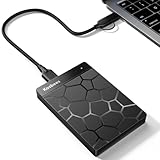
- 【Plug-and-Play Expandability】 With no software to install, just plug it in and the drive is ready to use in Windows(For Mac,first format the drive and select the ExFat format.
- 【Fast Data Transfers 】The external hard drives with the USB 3.0 cable to provide super fast transfer speed. The theoretical read speed is as high as 110MB/s-133MB/s, and the write speed is as high as 103MB/s.
- 【High capacity in a small enclosure 】The small, lightweight design offers up to 500GB capacity, offering ample space for storing large files, multimedia content, and backups with ease. Weighing only 0.35 Lbs, it's easy to carry "
- 【Wide Compatibility】Supports PS4 5/xbox one/Windows/Linux/Mac and other operating systems, ensuring seamless integration with game consoles,various laptops and desktops .
- Important Notes for PS/Xbox Gaming Devices: You can play last-gen games (PS4 / Xbox One) directly from an external hard drive. However, to play current-gen games (PS5 / Xbox Series X|S), you must copy them to the console's internal SSD first. The external drive is great for keeping your library on hand, but it can't run the new games.
What do full, incremental and differential backups mean?
- Full backup: copies everything selected for that job. It generally requires the most space and time for an individual run and provides the baseline for subsequent change-based backups.
- Incremental backup: copies changes since the previous backup. It reduces the amount copied per run, but restoration may depend on the full backup and a sequence of later increments.
- Differential backup: copies changes since the last full backup. It grows as changes accumulate, while restoration generally needs the full backup and the relevant differential.
These are backup methods, not guarantees that every listed application supports every method. The purchasing question is whether the product’s scheduling, retention and verification controls suit your workload. Do not manually delete files from a backup chain merely because they look old; use the application’s retention controls so it can account for dependencies.
Can you back up Windows to an external hard drive?
Yes—an external drive is a practical destination for personal-file backups and, with suitable software, Windows system images. It is particularly useful when your data set is large or your internet connection makes cloud uploads inconvenient.
Microsoft recommends considering external or network storage when internet access is unavailable or large uploads would be slow or costly. Local storage also keeps recovery from depending entirely on an internet connection.
Choose capacity based on the data you will protect and the versions you want to retain—not simply the advertised capacity of the PC’s internal drive. An image, later changes and multiple retained recovery points all consume space. Leave room for growth and use retention rules that do not silently erase every useful older version.
Recommended Free Tools
A network destination can make scheduled backups more convenient because it avoids repeatedly connecting a USB drive. But a network share that the PC can freely modify may also be accessible to malware running with the same permissions. Convenience and isolation are different properties.
The external drive containing the backup and the USB device used to start a recovery environment also have different jobs. Make sure your instructions identify each one clearly, and do not assume that having backup files automatically gives you a bootable recovery device.
Do you need cloud backup if you already have a USB drive?
You need an off-site copy, but it does not have to be cloud storage. A USB drive beside the PC can be lost in the same theft, fire or other physical incident.
CISA’s 3-2-1 guidance calls for three copies of important data: the primary copy and two backups, on two different media types, with one copy off-site. A second drive kept safely elsewhere can serve an off-site role; cloud storage is another approach.
What’s actually slowing this PC down?
Pick the symptom - the matching free tool is one click away.
Cloud storage is attractive because it avoids manually moving a drive and can provide remote access. The trade-offs include account security, capacity charges, upload time and the time needed to download a large recovery. Make sure a cloud-backed service provides the version retention and restoration behavior you need rather than treating synchronization alone as a complete backup policy.
An effective home arrangement could therefore be a working PC, versioned backups on separate local storage and another copy outside the home. Where practical, keep the local image for substantial recovery and protect the most irreplaceable files off-site. The exact mix should reflect both your budget and the amount of work you would lose.
Independent reader supportYour contribution helps us test, update, and keep practical guides available for everyone.How do you protect Windows backups from ransomware?
Keep at least one usable copy beyond the affected PC’s ability to alter it. Security software helps reduce risk, but backup isolation gives you a recovery option when prevention fails.
Veeam’s 3-2-1-1-0 guidance extends the familiar rule with one offline, air-gapped or immutable copy and zero errors in recovery verification. “Zero” is a target for checking backups, not a guarantee that data loss is impossible.
For a home user, disconnecting a backup drive after a completed, checked job is one way to reduce its exposure. If you rotate drives, keep track of which copy is current and which is off-site. The protection is weakened if every backup device is connected to the same potentially compromised PC at once.
Shopping ad

- Slim durable design to help take your important files with you
- Vast capacities up to 6TB[1] to store your photos, videos, music, important documents and more
- Back up smarter with included device management software[2] with defense against ransomware
- Help secure your important files with password protection and hardware encryption
- 3-year limited warranty
Immutability is a storage capability that restricts alteration or deletion for a defined period. Do not assume that a folder marked read-only, a mapped network drive or an ordinary cloud-sync directory provides equivalent protection.
ENISA’s June 2025 implementation guidance also emphasizes encryption, integrity checks, continuity measures and review of backup arrangements. In practical terms, encrypt sensitive backups when appropriate, retain the keys separately and confirm that you can recover the data without relying on the failed installation.
How do you set up a backup you can actually restore?
Create the backup and the recovery route together, then check both. A successful job notification only confirms one part of the process.
- List the data and system components that matter. Include personal folders, application-specific files and any data stored outside the usual Windows locations. Decide whether reinstalling Windows would be acceptable or whether you need a system image.
- Choose separate destinations. Identify the local destination and the off-site copy. A second partition on the same physical disk does not protect against that disk failing.
- Set the schedule from your acceptable data loss. Choose a frequency that matches your RPO. For a laptop or removable drive, also establish what happens when the destination is unavailable.
- Set retention before storage fills. Keep enough history to recover an older clean file, not merely the newest copy. Review actual storage growth rather than assuming the first backup predicts long-term usage.
- Store credentials and recovery keys independently. Follow NIST’s advice to secure offline recovery information. A password manager or key file that is accessible only from the failed Windows installation cannot be your sole recovery route.
- Create bootable recovery media if using imaging. Follow the application’s instructions and identify which backup destination you will access from that environment.
- Restore a sample file to a different folder. Open it and check its contents. Where versioning matters, retrieve an older version as well as the latest one.
- Check the bootable environment without overwriting your working PC. Confirm that it starts and can see the required storage. A full restoration rehearsal is more substantial and should use a suitable spare destination; do not experiment destructively on your only working copy.
- Review after material changes. Revisit the plan after adding important applications, changing storage, moving large folders or replacing the PC. Check job failures and destination capacity routinely.
What if a backup or recovery check fails?
If the destination is unavailable, check its connection, network access, credentials and available space. Confirm that the job later completed; a schedule on its own does not prove a current recovery point exists.
If recovery media cannot see the drive or network location, resolve that before depending on the image. Follow the application’s recovery-media instructions for the relevant storage or network hardware, then repeat the check.
If a restored file will not open, preserve the existing backups and check another recovery point. Do not immediately overwrite or delete the only remaining copies while investigating.
If backups repeatedly fill the destination, review retention and capacity together. Shortening retention may solve a space problem while creating a recovery problem, particularly if you need to reach back before an unnoticed deletion or infection.
Which setup fits your Windows PC?
Choose around recovery needs, not the longest feature list. Acronis True Image suits an integrated subscription approach; Macrium Reflect X Home suits image-focused recovery with storage you manage; Microsoft Windows Backup suits selected-folder protection and migration; Perfect Backup belongs in a requirements-led evaluation of dedicated utilities; and Veeam Agent for Microsoft Windows Free suits no-cost whole-PC imaging.
Before committing, check five things: you can restore the right data, you have a route back from a failed system drive if needed, your destination has sufficient capacity, one copy survives loss or compromise of the PC, and you can access the credentials and recovery instructions without the original Windows installation. Those checks make the software choice useful.
Frequently Asked Questions
Can I create a backup after my Windows PC has already stopped booting?
Possibly, if the storage device is still readable, but that is now a recovery task rather than a normal preventive backup. Do not initialize or format a drive containing the only copy of important files. If the device is physically failing or the data is irreplaceable, consider professional recovery before repeated repair attempts.
Will a scheduled backup run while my laptop is asleep?
That depends on the application, its wake and missed-job settings, and whether the destination is available. Check the timestamp of the last successful backup after the laptop wakes or the external drive reconnects. If your routine regularly misses scheduled jobs, change the schedule or connection routine.
The Tool Desk
Outbyte PC Repair FREEClear out junk files and repair common Windows errorsFree Scan →Outbyte Driver Updater FREEScan for outdated or missing drivers - takes under a minuteDriver Scan →Does backing up my Documents folder also protect my email and game saves?
Only if the relevant data is stored inside the folders included in that backup. Email archives, game saves and application databases can live elsewhere or depend on an online account. Check each important application’s storage location and recovery process rather than assuming Documents contains everything.
Can several family PCs use the same backup drive?
They can if the chosen applications support the arrangement and the drive has enough capacity, but each PC needs clearly separated backup sets and retention rules. One shared drive also creates a shared point of failure. Keep an additional protected copy of the important data rather than treating separate folders on that drive as independent protection.
Quick Recap
Product prices and availability are accurate as of the date/time indicated and are subject to change. Any price and availability information displayed on Amazon at the time of purchase will apply.