Inferse is reader-supported. When you buy through links on our site, we may earn an affiliate commission. As an Amazon Associate I earn from qualifying purchases. Learn more
The best data recovery software for a Windows PC depends on what failed. For a recent deletion on a healthy Windows drive, Microsoft’s free Windows File Recovery is the safest starting point if you can use Command Prompt. A graphical tool such as Recuva is easier for ordinary deletions, while advanced utilities such as R-Studio, DMDE, TestDisk or PhotoRec are more appropriate for partition damage, unusual recovery jobs or users comfortable with technical workflows. None can restore data that has been overwritten, securely erased or made unreadable by physical hardware failure.
Stop using the affected drive before choosing software, check the Recycle Bin and backups, and recover files to a different physical drive. The products below are listed alphabetically, not ranked. Free tools can be enough for a focused deletion, but paying makes sense when you need previews, filtering, broader filesystem or partition work, imaging, resumable scans or a guided interface.
At a glance
Plan availability and pricing can change by edition, operating system and region. Exact dollar amounts are included only where current support is available; otherwise, verify the vendor’s terms before purchase.
| Name | Best for | Key spec | Free plan / price | Platforms | Checked |
|---|---|---|---|---|---|
| DMDE | Experienced users working with partitions and damaged directory structures | Technical disk and file-recovery workflow | Free edition; paid editions available | Windows | November 2026 |
| PhotoRec | Recovering files when directory names and folders are damaged | File carving rather than normal folder-based recovery | Free and open-source | Windows | November 2026 |
| Recuva | Simple graphical recovery from Windows drives and removable media | FAT, exFAT and NTFS support reported for common Windows storage | Free edition; paid Professional edition | Windows | November 2026 |
| R-Studio | Advanced users comparing commercial tools for complex logical recovery | Technical recovery environment with a commercial license model | Demo and paid licensing terms vary | Windows | November 2026 |
| TestDisk | Users attempting partition and boot-structure repair or recovery | Command-line technical workflow | Free and open-source | Windows | November 2026 |
| Windows File Recovery | Focused deletion recovery on a healthy Windows drive | Microsoft Store command-line app with Regular and Extensive modes | Free | Windows 10 and Windows 11 | November 2026 |
Details checked November 2026.
The “best for” descriptions identify a suitable use case, not a ranking.
Shopping ad
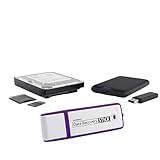
- The Data Recovery Stick requires no technical skills — simply plug it into your Windows computer, click Start, and the software automatically begins scanning and recovering lost files within minutes. Compatible with Windows Vista, 7, 8, 10, & 11, it's designed to be a reliable first step when accidental deletion occurs.
- Recover photos (JPG, BMP, PNG, TIFF), Microsoft Office documents (Word, Excel, PowerPoint, Publisher, Access), Open Office files, MP3 music files, PDFs, RTF documents, AutoCAD files, and HTML web pages. Whether it's personal memories or critical business files, the Data Recovery Stick covers the file types that matter most.
- Works with hard drives, USB drives, SD cards, memory sticks, and other common storage formats that use FAT or NTFS file systems — making it a single solution for hard drive recovery, USB drive recovery, SD card recovery, and more. Note: a media reader is required for micro SD cards and some mass storage devices.
- No Installation Required - The Data Recovery Stick runs entirely from the USB drive with no software installation on your computer — helping prevent new data from overwriting the files you're trying to recover. This also makes it ideal for use across multiple computers or in emergency situations where installation isn't practical.
- Use the Data Recovery Stick on as many computers as often as needed — simply clear the recovered data between uses to free up storage space. Software updates keep the tool compatible with newer systems and devices, backed by 25+ years of data software expertise from Paraben Consumer Software.
What should you do before running recovery software?
Protect the original data first. Every new write to the affected volume can overwrite space that once held a deleted file, so preparation matters more than choosing a tool with an impressive scan description.
- Stop using the affected drive. Do not install recovery software, download updates, browse heavily, copy files, create a partition or save recovered files to it.
- Check easier sources. Look in the Recycle Bin, File History, Windows Backup, cloud-sync folders, application autosaves and any other computer that may contain a copy.
- Identify the failure. Determine whether the problem is an ordinary deletion, formatting, a missing partition, a damaged filesystem, BitLocker encryption, an SSD with possible TRIM activity, RAID or a physically failing drive.
- Prepare a separate destination. Use an external hard drive, external SSD or another internal drive with enough free capacity. A different drive letter is not enough if both letters refer to partitions on the same physical disk.
- Use an image for unstable media. If the drive clicks, repeatedly disconnects, freezes Windows, reports the wrong capacity or takes an unusually long time to respond, avoid repeated scans. Create a sector-level image when possible and work from the image, or consult a professional recovery lab.
- Validate what comes back. Open representative documents, photos and archives. Compare file sizes and check whether large files are complete. A filename in a scan result is not proof that the file’s contents survived.
Do not run CHKDSK merely because Windows suggests it when physical failure is suspected. Filesystem repair can change directory information and make later recovery more difficult. Keep the original drive or image untouched until the recovered copy has been checked and backed up again.
Which data recovery software suits your situation?
The right choice is determined by the failure mode, not by a single universal recovery percentage. Logical loss means the storage device is still readable but files or directory information have been deleted, formatted or damaged. Physical failure means the electronics, controller, heads, flash media or power behavior are failing; software cannot repair that hardware.
Choose a free tool when the problem is narrow and the drive is healthy
A free tool is reasonable for a recently deleted file on a stable Windows volume, especially when you know the original folder or file type. The trade-off is usually a command-line interface, less visual confirmation, limited filtering or more technical recovery work. Free recovery cannot bypass overwritten sectors, secure erase, TRIM-related loss or a drive that cannot read its own media.
Pay when you need guidance, previews or complex recovery
A paid product can be worthwhile when you need a visual interface, quick-to-deep scan switching, file previews, filtering, resumable scan information, image-based recovery or broader partition and filesystem workflows. Paying does not improve sectors that have already been overwritten. Before purchasing, check whether the license covers one computer or several, whether it is a subscription or perpetual license, whether renewals change the price, and whether the current edition explicitly supports your filesystem, encrypted volume, RAID or device type.
1. DMDE: who it is for
DMDE suits technically confident Windows users who are dealing with lost partitions, damaged directory structures or recovery work that needs more control than a simple undelete wizard. It is less suitable when the priority is a highly guided, low-risk workflow for a nervous user.
What it does: It is generally used for technical disk, partition and file recovery. That kind of workflow requires care: selecting the wrong source, writing changes to the original disk or treating a damaged partition as disposable can make the situation worse.
Recommended Free Tools
Free plan and paid options: A free edition is available, while paid editions provide broader use and fewer restrictions. Exact current prices and edition limits vary, so confirm the current licensing page before buying. Upgrade only if the free workflow can identify the needed files and the paid edition’s limits match the recovery job.
Use it when: You understand partitions, disk layouts and the difference between scanning and writing changes. For a simple deletion on a healthy NTFS drive, a simpler graphical tool or Microsoft’s command-line utility may involve less decision-making.
2. PhotoRec: who it is for
PhotoRec is suited to users who need a free recovery path when the filesystem’s folder structure is damaged or missing and who can tolerate losing original filenames and folder organization.
Shopping ad

- Data recovery software for retrieving lost files
- Easily recover documents, audios, videos, photos, images and e-mails
- Rescue the data deleted from your recycling bin
- Prepare yourself in case of a virus attack
- Program compatible with Windows 11, 10, 8.1, 7
What it does: Its file-carving approach searches readable media for recognizable file signatures rather than depending entirely on intact directory metadata. That can help when a partition has been reformatted or the directory structure is badly damaged, but the result may contain generic filenames, duplicate fragments or files without their original folders.
Free plan and paid options: It is free and open-source; there is no paid tier to upgrade to. The cost is time and technical complexity rather than a subscription. Use a separate destination and expect to sort and validate the results manually.
Use it when: You care more about recovering file contents than preserving names and folders. It is a poor first choice if a recent deletion can still be recovered with directory information intact and you want an easy preview-driven process.
3. Recuva: who it is for
Recuva suits Windows users who want a familiar graphical workflow for ordinary deletions on internal drives, external disks, USB flash drives or memory cards. A published reference describes support for FAT, exFAT and NTFS storage; verify the current vendor documentation before relying on a particular filesystem or device configuration.
What it does: It is designed around straightforward file recovery rather than a command-line process. Its main advantage for a casual user is visual guidance and a simpler path from selecting a location to scanning for deleted files.
Quick wins for a faster PC:
Scan for outdated or missing drivers - takes under a minuteDriver Scan →Clear out junk files and repair common Windows errorsFree Scan →Fix the driver behind crashes, sound loss and screen glitchesFind Drivers →Free plan and paid options: A free edition is available. A paid Professional edition also exists, but current pricing, renewal terms and feature limits should be checked before purchase because they can change. Upgrade when the free edition’s capabilities do not provide the workflow or support needed for the recovery job, not simply because a scan contains more filenames.
Use it when: The drive is stable, the deletion is recent and the missing files were on a normal Windows filesystem or removable device. Do not assume that a familiar graphical interface means it can handle RAID, an encrypted volume without a key, a failing disk or every boot-media configuration.
For ordinary deletion, the critical rule remains the same: install the program somewhere other than the affected volume and save recovered files to another physical drive. Recuva’s scan result should be treated as a set of candidates until representative files open correctly.
4. R-Studio: who it is for
R-Studio is aimed at technically experienced users who are comparing commercial recovery environments for more complex logical-loss cases. It is a better fit for someone prepared to understand partitions, scan results and destination management than for someone seeking a one-click undelete tool.
Windows Errors? Fix Them Before They Spread
Repair common Windows errors and clear accumulated junk for a smoother, more stable PC - no reinstall needed.Free scan · no reinstallCrashes, No Sound, or Screen Glitches?
Random freezes, missing sound and display glitches usually trace back to one bad driver. Find and replace yours safely.Free scan · under a minuteWhat it does: It is commonly considered when a recovery job goes beyond a single recently deleted document, such as a damaged directory structure or a more involved partition layout. The exact filesystem, RAID, encryption and device support should be confirmed in the current edition’s documentation rather than assumed from the product name.
Shopping ad

- Stellar Data Recovery Professional is a powerful data recovery software for restoring almost every file type from Windows PC and any external storage media like HDD, SSD, USB, CD/DVD, HD DVD and Blu-Ray discs. It recovers the data lost in numerous data loss scenario like corruption, missing partition, formatting, etc.
- Recovers Unlimited File Formats Retrieves lost data including Word, Excel, PowerPoint, PDF, and more from Windows computers and external drives. The software supports numerous file formats and allows user to add any new format to support recovery.
- Recovers from All Storage Devices The software can retrieve data from all types of Windows supported storage media, including hard disk drives, solid-state drives, memory cards, USB flash storage, and more. It supports recovery from any storage drive formatted with NTFS, FAT (FAT16/FAT32), or exFAT file systems.
- Recovers Data from Encrypted Drives This software enables users to recover lost or deleted data from any BitLocker-encrypted hard drive, disk image file, SSD, or external storage media such as USB flash drive and hard disks. Users will simply have to put the password when prompted by the software for recovering data from a BitLocker encrypted drive.
- Recovers Data from Lost Partitions In case one or more drive partitions are not visible under ‘Connected Drives,’ the ‘Can’t Find Drive’ option can help users locate inaccessible, missing, and deleted drive partition(s). Once located, users can select and run a deep scan on the found partition(s) to recover the lost data.
Free plan and paid options: A demonstration option and paid licensing are associated with the product, but the usable recovery limits and current prices depend on the edition and should be verified before purchase. Upgrade only after confirming that the license covers the operating system and storage configuration involved.
Use it when: You need a commercial, technically capable candidate and are comfortable comparing current documentation. If the drive is clicking, disappearing, reporting the wrong capacity or repeatedly freezing, stop software attempts instead of moving to a more advanced scanner.
5. TestDisk: who it is for
TestDisk suits technically confident users whose main problem is a lost partition, damaged partition structure or boot-related layout issue rather than a single deleted file.
The Tool Desk
Outbyte PC Repair FREERepair Windows errors before they cause bigger problemsFix Now →Outbyte Driver Updater FREEFix the driver behind crashes, sound loss and screen glitchesFind Drivers →What it does: It provides a command-line recovery workflow intended for inspecting and working with partition information. That makes it powerful in the right hands but unforgiving when the user is unsure which disk is the source or which proposed change is safe.
Free plan and paid options: TestDisk is free and open-source, with no paid upgrade tier. The absence of a purchase cost does not remove the need for a separate destination and a backup or image before making changes to partition information.
Use it when: Windows shows the disk but the expected partition is missing, or the problem is clearly related to partition structure. For an ordinary deleted file on an intact volume, start with a focused undelete workflow instead of changing partition metadata.
6. Windows File Recovery: who it is for
Windows File Recovery is the strongest free starting point for a focused deletion on a healthy Windows drive when you are comfortable with Command Prompt. Microsoft documents recovery from internal drives, external drives and USB devices, but not cloud storage or network shares.
What it does: It is a Microsoft Store command-line app. Its basic syntax is:
winfr source-drive: destination-drive: /mode /switches
The source and destination must be different drives. Microsoft warns that deleted-file space is marked as free and that ordinary computer use can create new files that overwrite it. Do not create a new partition after data loss, and do not use the affected volume as the destination.
Shopping ad

- Stellar Data Recovery is an easy-to-use, DIY Windows data recovery software for recovering lost and deleted documents, emails, archived folders, photos, videos, audio, etc., from all kinds of storage media, including the modern 4K hard drives.
- Supports Physical Disk Recovery The software brings an all-new option to scan physical disks to retrieve maximum recoverable data. This feature combined with its advanced scanning engine efficiently scans physical disk in RAW mode and retrieve the lost data in numerous data loss scenarios like accidental deletion, formatting, data/drive corruption, etc.
- Supports 4K Hard Drives The software recovers data from 4K hard drives that store data on large-sized sectors. With an advanced scanning engine at its disposal, the software scans the large storage sectors of 4096 bytes on 4K drives and retrieves the data in vast data loss scenarios like accidental deletion, formatting, data corruption, etc.
- Recovers from Encrypted Volumes Easily retrieves data from BitLocker-encrypted drives or drive volumes. The software allows users to select the encrypted storage drive/volume and run either a ‘Quick’ or ‘Deep’ scan to recover the lost data. Once scanning commences, the software prompts users to enter the BitLocker password to proceed further.
- Recovers from Corrupt Drives The ‘Deep Scan’ capability enables this software to thoroughly scan each sector of the problematic drive and recover files from it. Though this process takes time, it extracts every bit of recoverable data and displays it on the preview screen.
How do you use Windows File Recovery safely?
- Connect a destination drive with enough free space. Confirm that it is a different physical drive from the source.
- Install Windows File Recovery from the Microsoft Store on a healthy volume, not the affected one where that can be avoided.
- For a common recent deletion on an NTFS volume, start with
/regularand use a narrow path or filename filter. - For a formatted drive, a failed Regular scan or a filesystem situation that needs broader searching, try
/extensive. - Review the recovered output on the destination drive and open representative files before deleting or repurposing the source.
Microsoft’s documented example for a user’s Documents folder is:
Do these 3 things before closing this tab:
1Clear out junk files and repair common Windows errors2Scan for outdated or missing drivers - takes under a minute3Repair Windows errors before they cause bigger problemswinfr C: E: /regular /n Users<username>Documents
For file types, a narrow filter can target extensions such as PDF or DOCX. The exact path and capitalization should match the source location where possible. A focused filter reduces unnecessary results and makes validation easier.
The command-line design is the trade-off. Windows File Recovery provides less visual confirmation than a graphical program, so it is not ideal for a user who needs to preview photos and documents before deciding what to save. It is, however, a sensible first step when the loss is recent, the drive is healthy and paying for a graphical workflow is unnecessary.
Independent reader supportYour contribution helps us test, update, and keep practical guides available for everyone.Can software recover a formatted hard drive or lost partition?
Sometimes, but the result depends on what formatting changed and whether new data overwrote the old sectors. A quick format may leave more recoverable content than a secure erase or a format followed by substantial use, while a damaged partition table may hide an otherwise readable volume.
For a formatted drive, stop using it immediately and do not recreate the partition or copy a new operating system onto it. A file-carving tool may recover contents without original names, while a partition-aware tool may preserve more structure when the underlying metadata remains readable. If the disk is unstable, image it first rather than scanning the original repeatedly.
What’s actually slowing this PC down?
Pick the symptom - the matching free tool is one click away.
Do not treat a successful scan as proof of a complete recovery. Documents may open partially, photographs may show corruption, and archives may fail only when a later file is extracted. Keep the source unchanged until the recovered copy has passed these checks.
Can you recover files from an SSD?
SSD recovery is possible in some cases, but it is less predictable than ordinary recovery from a healthy hard drive. TRIM may allow the SSD to reclaim blocks after deletion, and encryption can make readable-looking storage useless without the correct key or an environment in which the volume is still unlocked.
Do not format, initialize or repeatedly scan the SSD. Preserve the BitLocker recovery key if BitLocker is involved, and do not assume that recovery software can bypass encryption. If the computer still opens the volume, copy essential files to another drive before experimenting. If the SSD is disappearing, freezing or showing the wrong capacity, stop software attempts and seek specialist help.
What about external drives, USB sticks and memory cards?
External drives and USB devices can be recoverable when the media remains readable and the loss is logical. Windows File Recovery supports documented recovery scenarios for external drives and USB devices, while Recuva is described in secondary reference material as supporting common removable media and Windows filesystems.
Free tools Windows power users keep installed
One-click scans. No signup required.
Use a stable connection, avoid repeatedly unplugging a failing device and never save recovered files back to the same card or drive. A card reader or USB adapter can be part of the connection problem, so if the device alternates between appearing and disappearing, test the connection only long enough to identify the issue; do not keep rescanning a physically unstable device.
Shopping ad

- Never lose data again and enjoy instant recovery after a system failure
- Easy and complete software for Windows data backup and recovery, file synchronization, and disk cloning
- Protection against viruses, malware, and ransomware — restore your backup and keep working
- License for 2 PCs, lifetime validity — no subscription
- Compatible with Win 11 and 10 — fully in English - English language support
How should you handle a clicking or failing hard drive?
Do not keep trying software. Clicking, repeated resets, a missing or incorrect capacity, severe freezing and a drive that vanishes from Windows are signs of possible physical failure. Scanning adds reads and may reduce the chance of a controlled recovery.
The safer path is to power the device down, avoid opening it, and use a professional recovery lab if the files are important. If the drive is stable enough for imaging, create one complete disk or volume image and perform scans against that image. Keep the original untouched and store the image on a separate drive with sufficient capacity.
What costs do people overlook?
The advertised license is only one part of the recovery cost. You may also need a destination drive, a USB enclosure or adapter, enough storage for an image, and a second backup after validation. A tool that offers a free scan but limits recovered data can still require an upgrade at the point when the files are identified.
What’s actually slowing this PC down?
Pick the symptom - the matching free tool is one click away.
Before paying, check whether the license is monthly, annual or perpetual; whether renewal is automatic; whether activation is limited to one computer; whether major-version upgrades cost extra; and whether the product supports the exact filesystem, encryption state, RAID layout and device type. Do not buy based solely on a scan result or a marketing claim about a recovery rate. No authoritative general success-rate statistic applies to every Windows drive because deletion age, overwriting, filesystem damage and hardware health change the outcome.
How we selected the shortlist
The shortlist covers different recovery jobs rather than assigning a single winner: focused deletion recovery, graphical recovery, partition work, file carving, advanced commercial workflows and a Microsoft command-line option. The comparison considers ease of use, preview and filtering needs, deleted versus formatted or partition recovery, filesystem and device questions, imaging, free limits, licensing and the requirement to write only to a separate destination. The products are presented alphabetically, not ranked, and no recovery-rate claim is made without a specified test drive, filesystem, overwrite condition, scan mode and file-integrity check.
Frequently Asked Questions
Can permanently deleted files be recovered without the Recycle Bin?
Sometimes. “Permanently deleted” often means Windows removed the directory reference and marked the space as available, not that every sector was instantly erased. Recovery becomes less likely each time the computer writes to that space, so stop normal use and avoid installing applications on the affected volume.
Why does recovery software find a file that will not open?
The scan may have found leftover metadata or only part of the file’s contents. Fragmented files, overwritten sectors, damaged headers and incomplete carved files can all produce a visible filename with unusable data. Test several files of different sizes and types before treating the recovery as successful.
The Tool Desk
Outbyte PC Repair FREERepair Windows errors before they cause bigger problemsFix Now →Outbyte Driver Updater FREEFix the driver behind crashes, sound loss and screen glitchesFind Drivers →Can I recover files from a BitLocker-encrypted drive?
You need the BitLocker recovery key or an environment where the volume is already unlocked. Recovery software cannot substitute for the encryption key. Do not format or initialize the drive while trying to solve the access problem, and preserve any recovery-key copies before making changes.
Should I recover files to another partition on the same hard drive?
No. Another partition can still share the same physical disk, so writing recovered data there may overwrite sectors needed from the lost files. Use a separate internal disk or an external drive, and keep an additional backup after the recovered files have been checked.
Quick Recap
Product prices and availability are accurate as of the date/time indicated and are subject to change. Any price and availability information displayed on Amazon at the time of purchase will apply.